NovoNote handles language in two separate ways:
1. Transcription: NovoNote transcribes your session in the language (or languages) actually spoken.
2. Documentation: NovoNote writes your notes and documents in the language you choose.
Because these steps are separate, the language of your session doesn't need to match the language of your notes or documents.
Step 1. Transcription
For several common languages, NovoNote detects and transcribes each part of the session in the language it was spoken in. For these languages, this means that you do not need to change any settings in NovoNote to have a session recorded and transcribed in a language other than English. For the full list of supported languages, see Multilingual AI Scribe.
Step 2. Choose the language of your notes and documents
NovoNote writes your note in the language of the template you use. Currently, most templates are in English, so if you hold a session in Spanish and use an English template, you'll receive an English note with no extra steps.
To produce notes or documents in a different language, you have three options:
| Option | Best for |
|---|---|
| 1. Choose a template written in that language | Session notes, when you want your notes in that language routinely |
| 2. Ask NovoNote to rewrite a note (Add Context or Smart Edit) | A session note you've already generated |
| 3. Ask for a client document in another language (Create Document → Additional Context) | Session summaries, homework, letters and other documents |
Option 1. Select a template written in your preferred language
NovoNote's growing template library includes templates written in languages other than English. They instruct NovoNote to write the whole note in that language, including all headings, regardless of which language the session was held in.
To find the templates currently available:
1. Navigate to your Template settings
In NovoNote, click on your name in the top right corner, then click on "Templates"
2. Click on the gear icon (top right)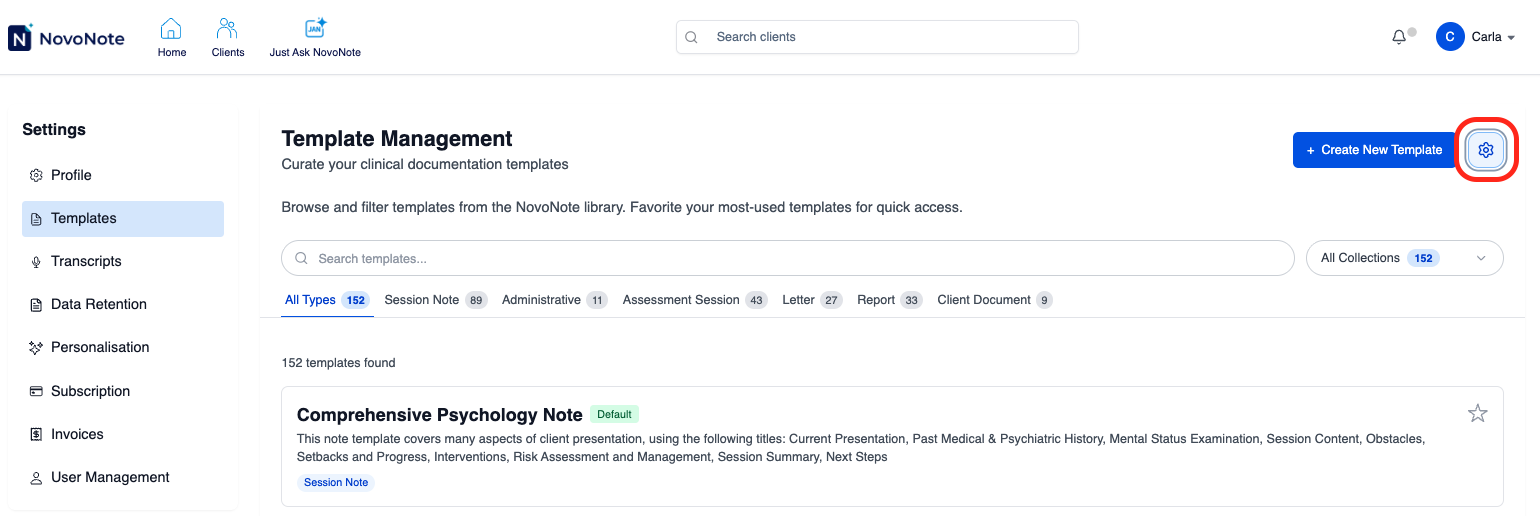
3. Select which template languages you'd like to see
Templates available in your chosen languages will now appear in your template library.
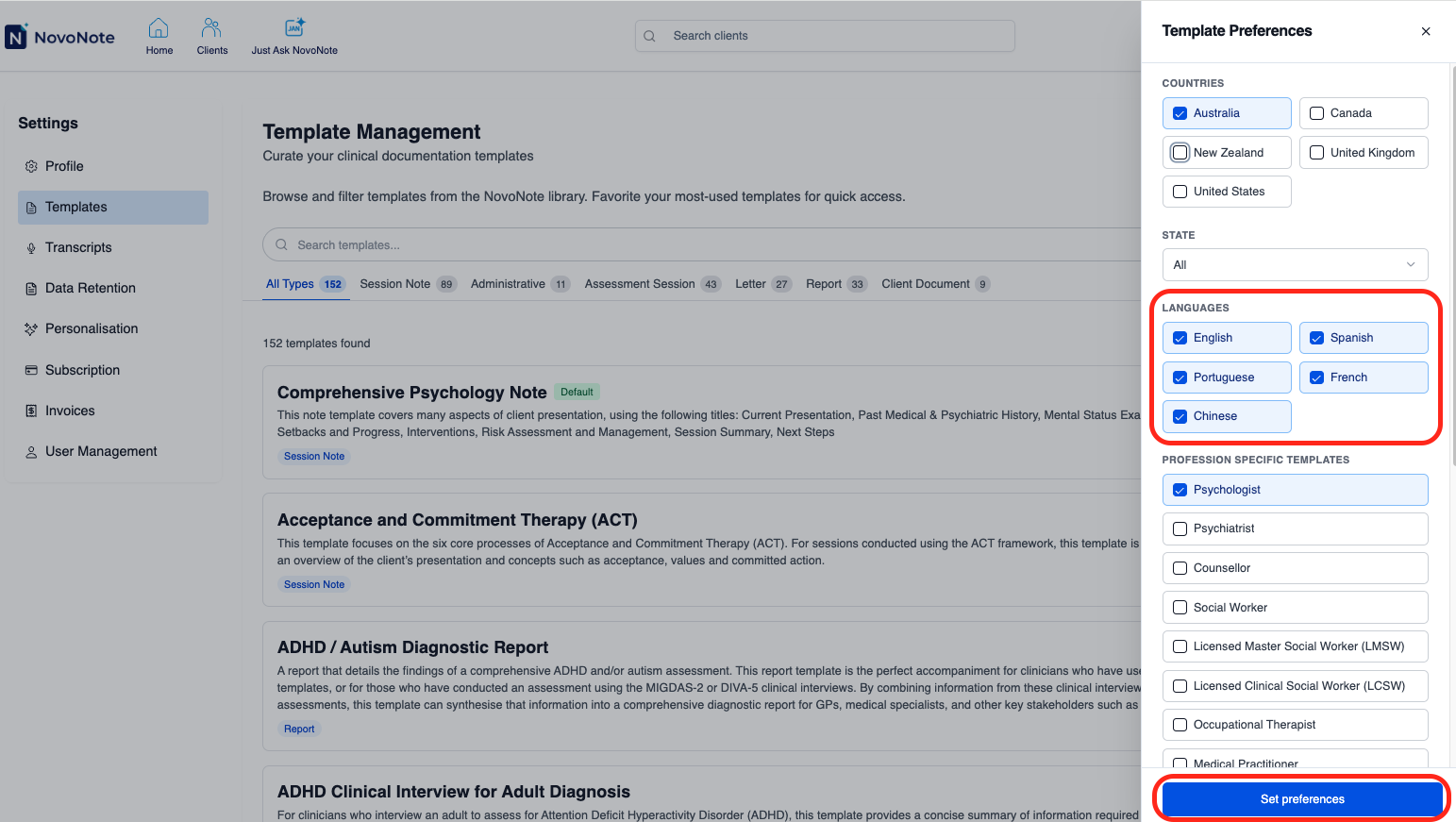
4. Choose the template when you next record
Now you can apply the template in your chosen language by choosing it before you record your next session, or by changing the template after the recording. Learn how to change a note template here.
Option 2. Ask NovoNote to rewrite a note in another language
You can have a note regenerated in a different language after it has been produced:
1. Open the session note and click "Add Context or Smart Edit"
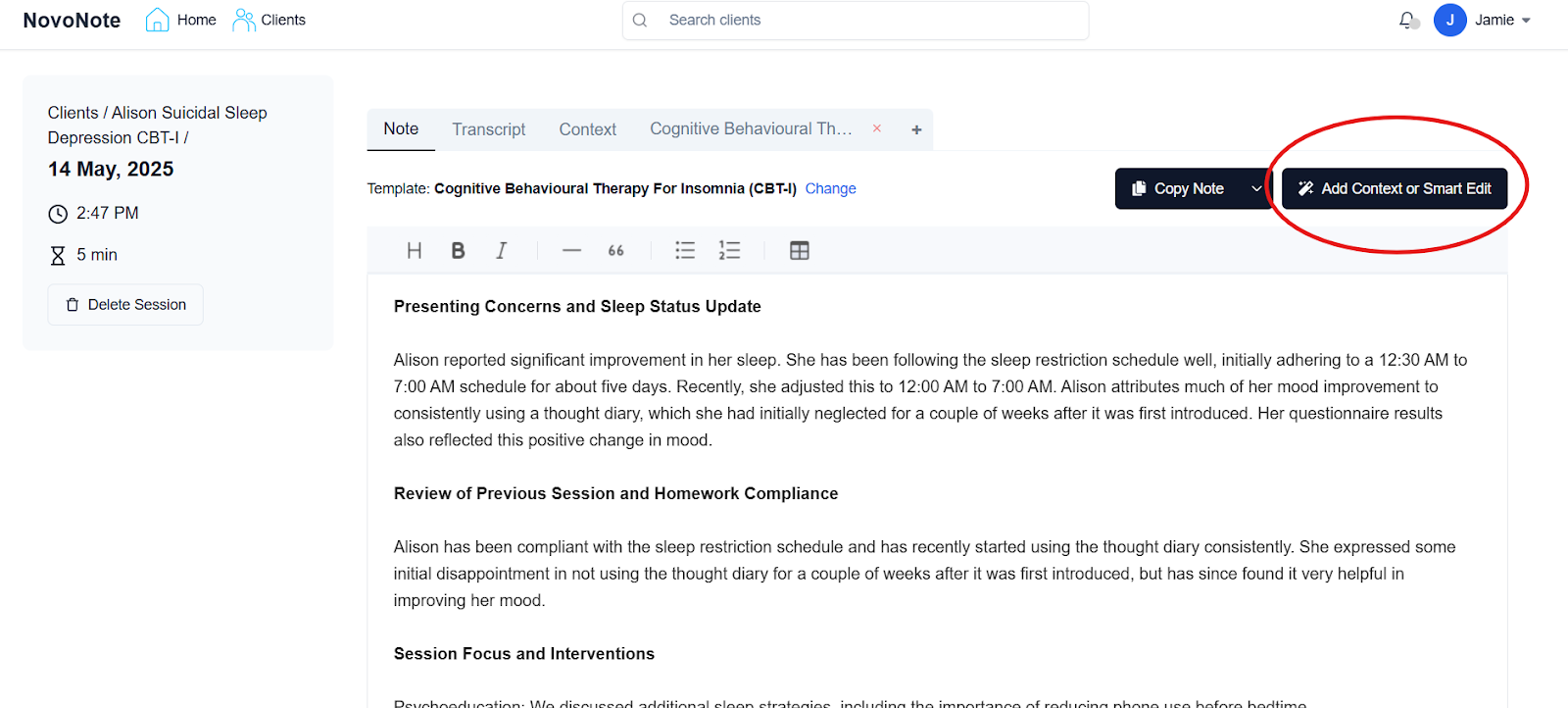
2. Type your instruction
For example, "Rewrite this note in Spanish"
3. Click "Generate new note"
Option 3. Create client documents in another language
This option is helpful when your clinical record needs to stay in English, but your client would benefit from written material in their own language.
1. Open the client and click "Create Document"
You can learn more about how to use this feature here
2. Select the template for the documentation
For example, you might be providing a Client Session Summary and Homework Activities
3. Use the "Additional Context" field to type your instruction
For example, "Generate this in Spanish"
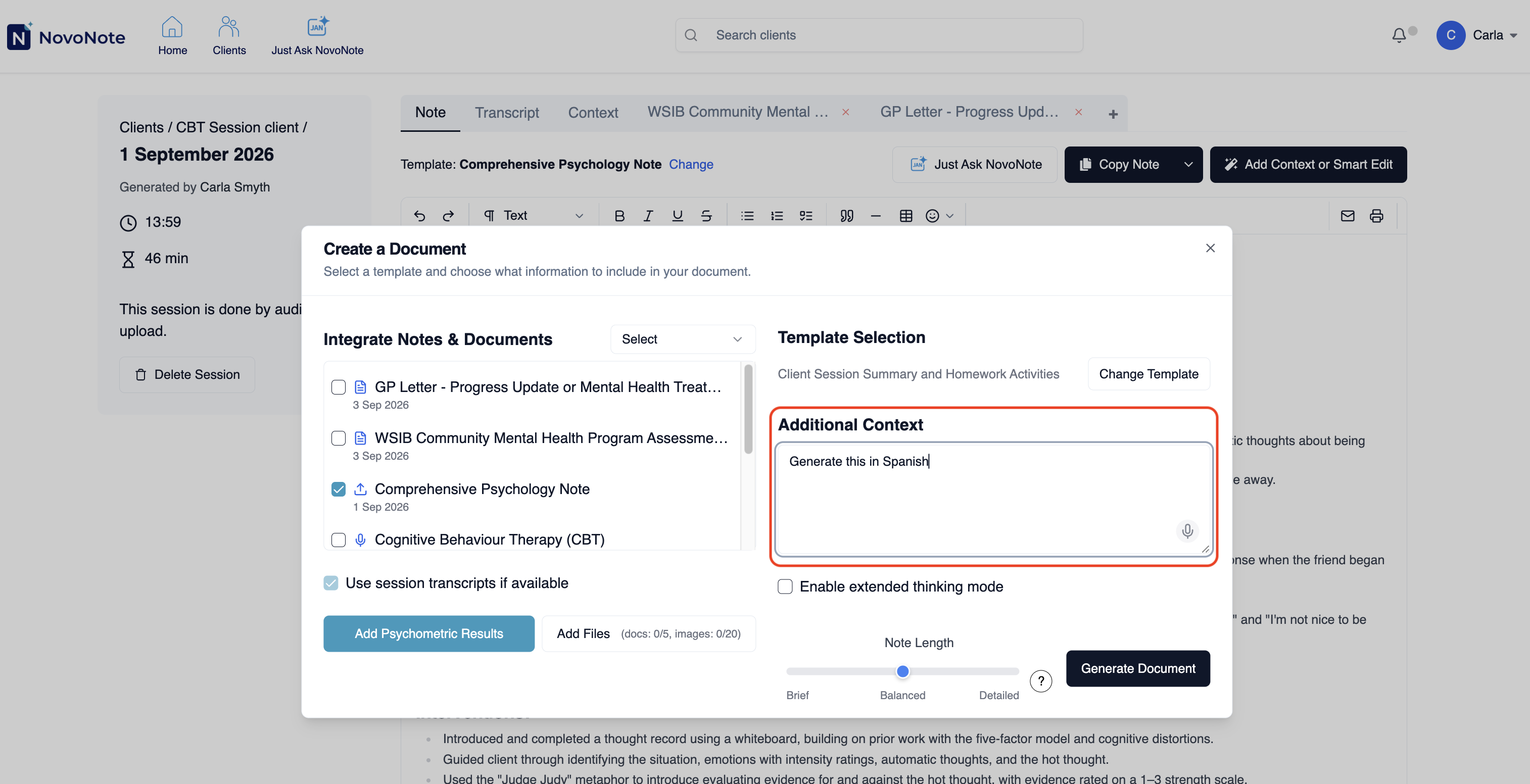
4. Click "Generate Document"
If you have any questions, contact us at info@novopsych.com.
Was this article helpful?
That’s Great!
Thank you for your feedback
Sorry! We couldn't be helpful
Thank you for your feedback
Feedback sent
We appreciate your effort and will try to fix the article