You can now upload external files in NovoNote and have them integrated directly into your documentation and session notes.
Some of the situations in which it can be helpful to upload additional documents or images include:
GP referrals and Mental Health Treatment Plans - ensure referral details are captured in your notes and documents
Previous progress notes - integrate information from previous sessions into your documentation, if not currently available in NovoNote
Correspondence or reports from other professionals
Assessment results
Client homework or worksheets
The uploading function allows you to more quickly generate richer, more comprehensive documentation, without needing to manually synthesise or juggle multiple systems and attachments.
Adding a file is easy, following the simple steps below:
1. Open a client file → select “Files” tab
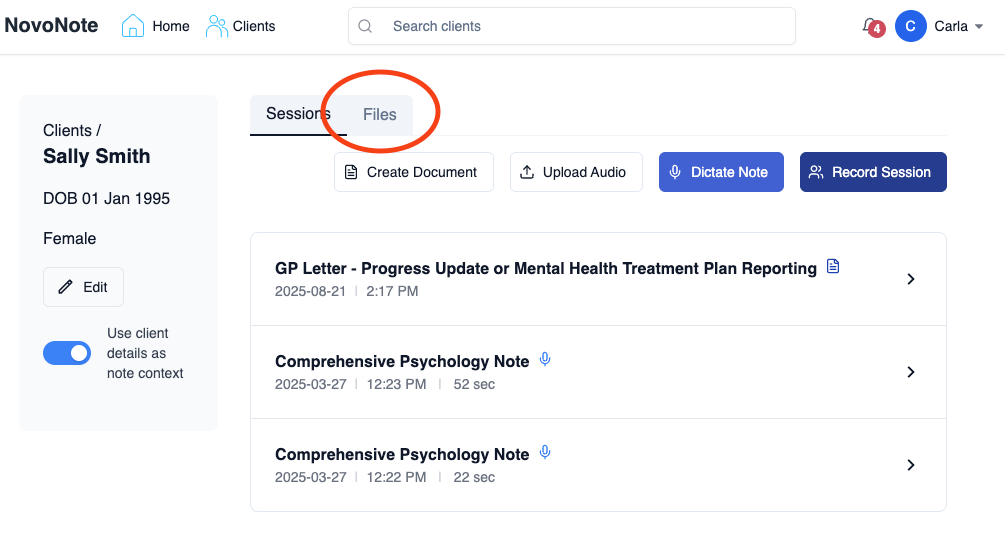
2. Upload by drag-and-drop or choose any file (PDF, DOC, DOCX, JPG, PNG)
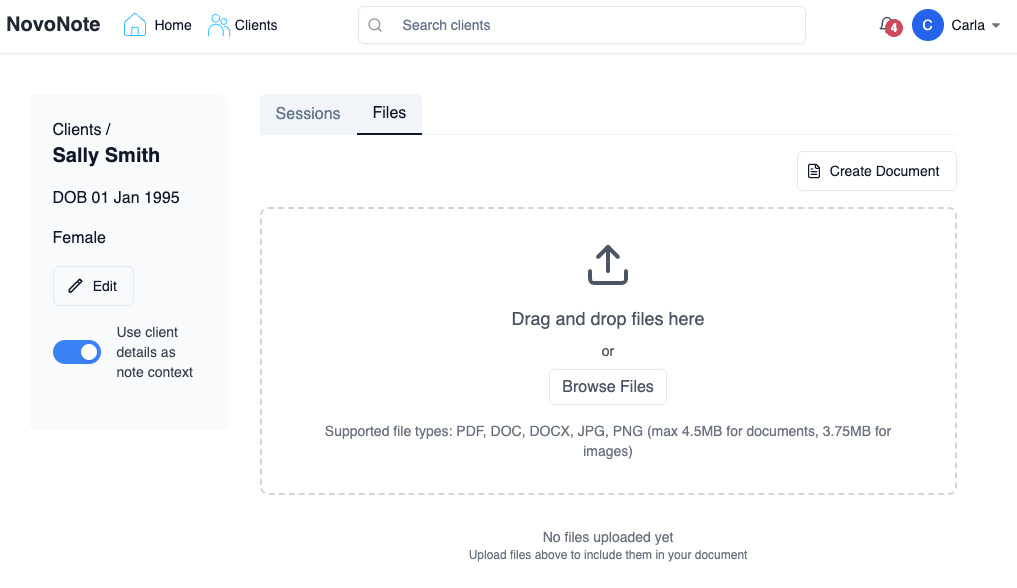
Tip: Name files clearly before uploading, to make selection easier when viewing in NovoNote.
File Upload Limits in NovoNote

When uploading files in NovoNote, please note the following limits:
- Documents: Maximum file size of 4.5 MB per document
- Images: Maximum file size of 3.75 MB per image

You can select up to 5 documents and 20 images per generation.
3. Click “Create Document”
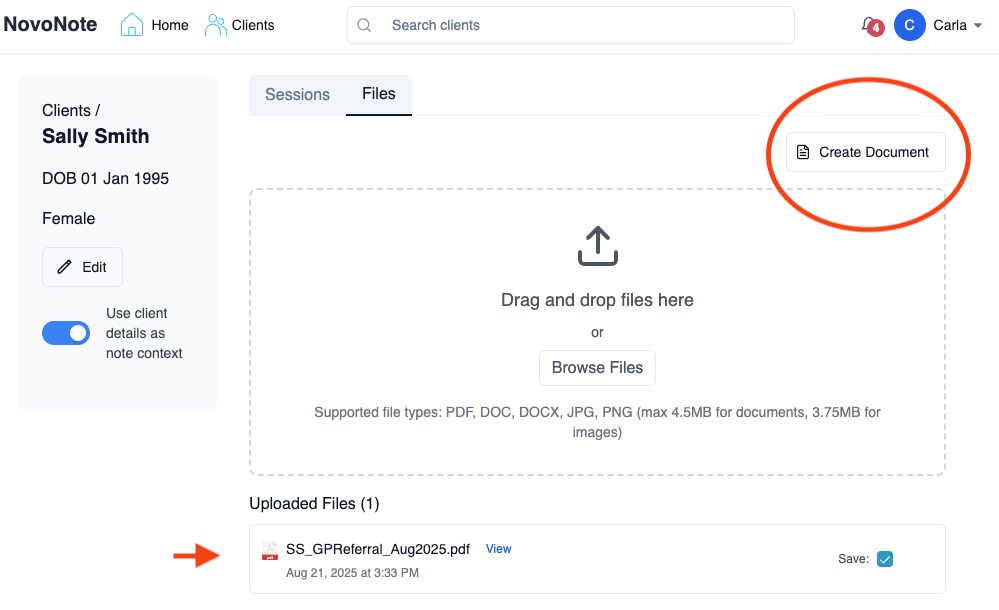
4. Click “Add Files”, then tick which files to integrate.
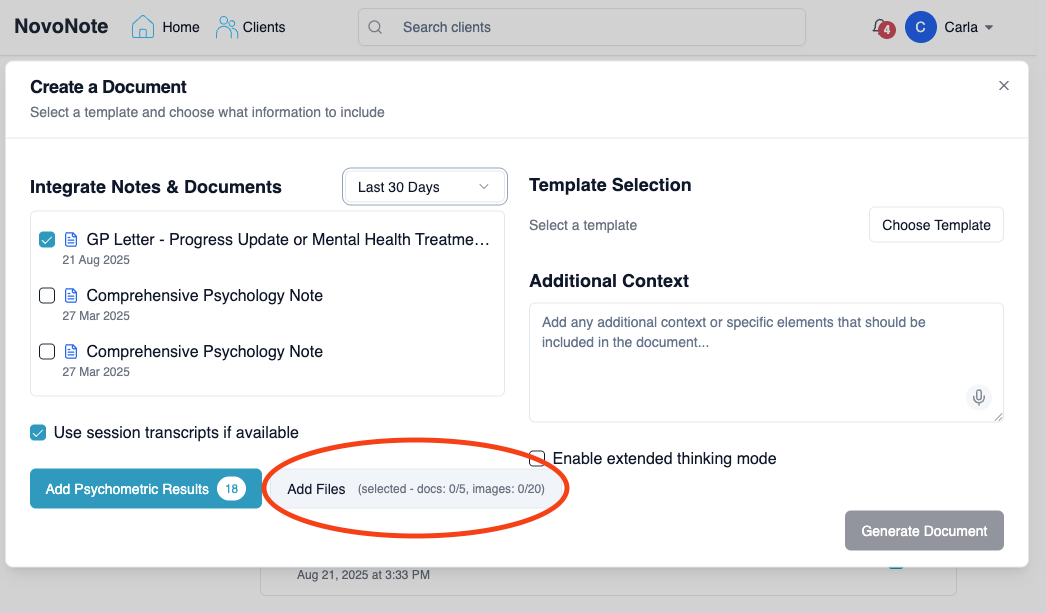
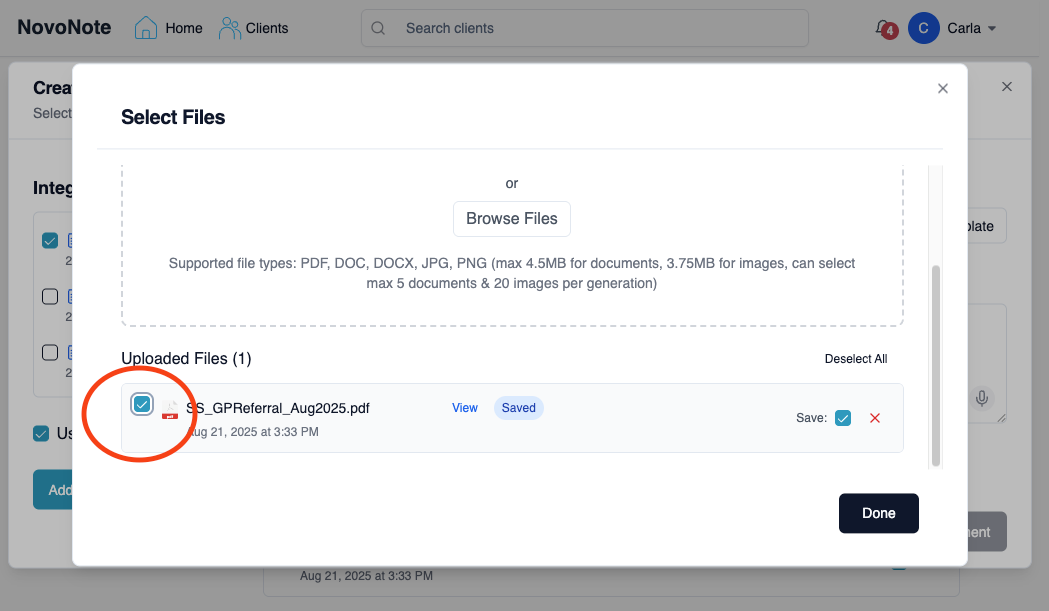
Note that you can also upload additional files at this step, too!
5. From here, you can follow the usual steps to “Create a Document” by selecting or adding any:
Session Notes
Psychometric Results
- Additional Context
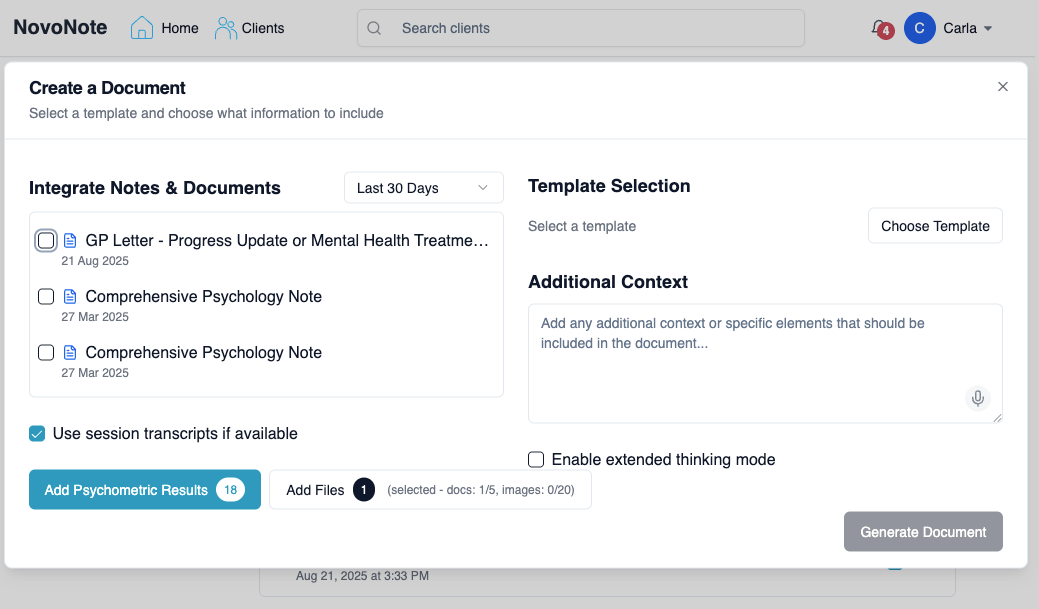
To learn more, see: Using Psychometrics in NovoNote DocumentsTo learn more, see: Add Context or Smart Edit
6. Once you’ve selected your template, click “Generate Document”, and NovoNote will integrate the attached files into your chosen document.
? To learn more about how to create a document in NovoNote, also see: Creating Documents - Generating Documents from Multiple Sessions Over TimeBy following these steps, you can quickly integrate all key documents to generate clinically richer and more comprehensive session notes, letters and reports.
Was this article helpful?
That’s Great!
Thank you for your feedback
Sorry! We couldn't be helpful
Thank you for your feedback
Feedback sent
We appreciate your effort and will try to fix the article