The Add Context or Smart Edit functions allow users to enter additional information that can be used by the AI when generating a note or document.
Some examples of how the Add Context or Smart edit feature can be helpful:
Add details or information about the client / patient that has not been explicitly mentioned in a session, but is relevant to the note or document you wish to produce (e.g., the way they looked or appeared in a session);
- Add relevant client / patient quotes not in the original note;
- Add background information that is known by the clinician, but may not have been discussed in session, and therefore not contained in the original note;
- Add notes from the client / patient's previous sessions to be integrated into the document;
Add details about who a letter is being addressed to or why a letter is being written;
Request an overall change in the formatting or style of the documentation, or ask NovoNote to emphasise a particular aspect of a session in the documentation.
Adding context can be done in a number of ways:
1. Using the Context tab at the top of a session note:
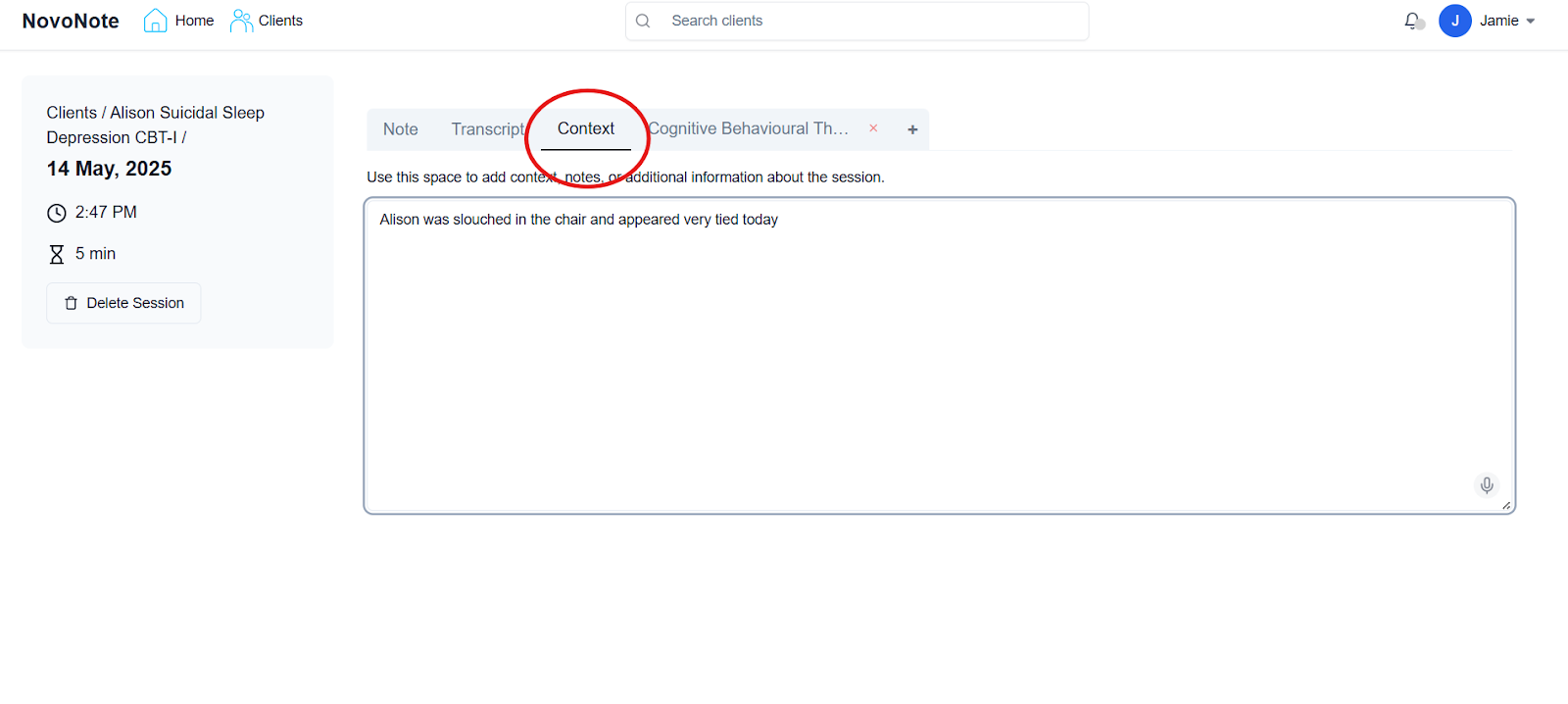
Note: Information added using this method is integrated into any additional notes or documents produced from this transcript using the "+" tab at the top of a session note. The contents of the original "Note" tab remains unchanged.
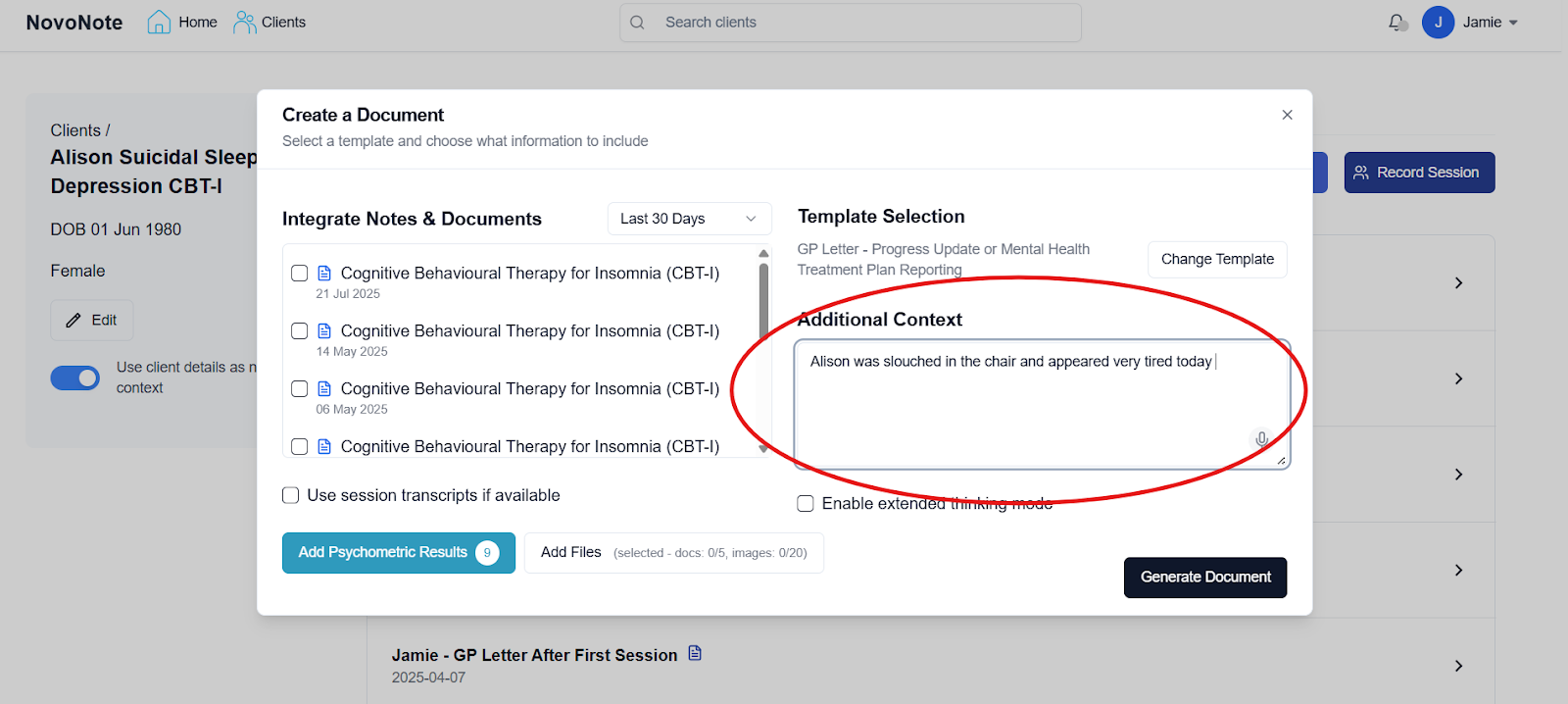
2. Using the Additional Context box in the Create Document screen:
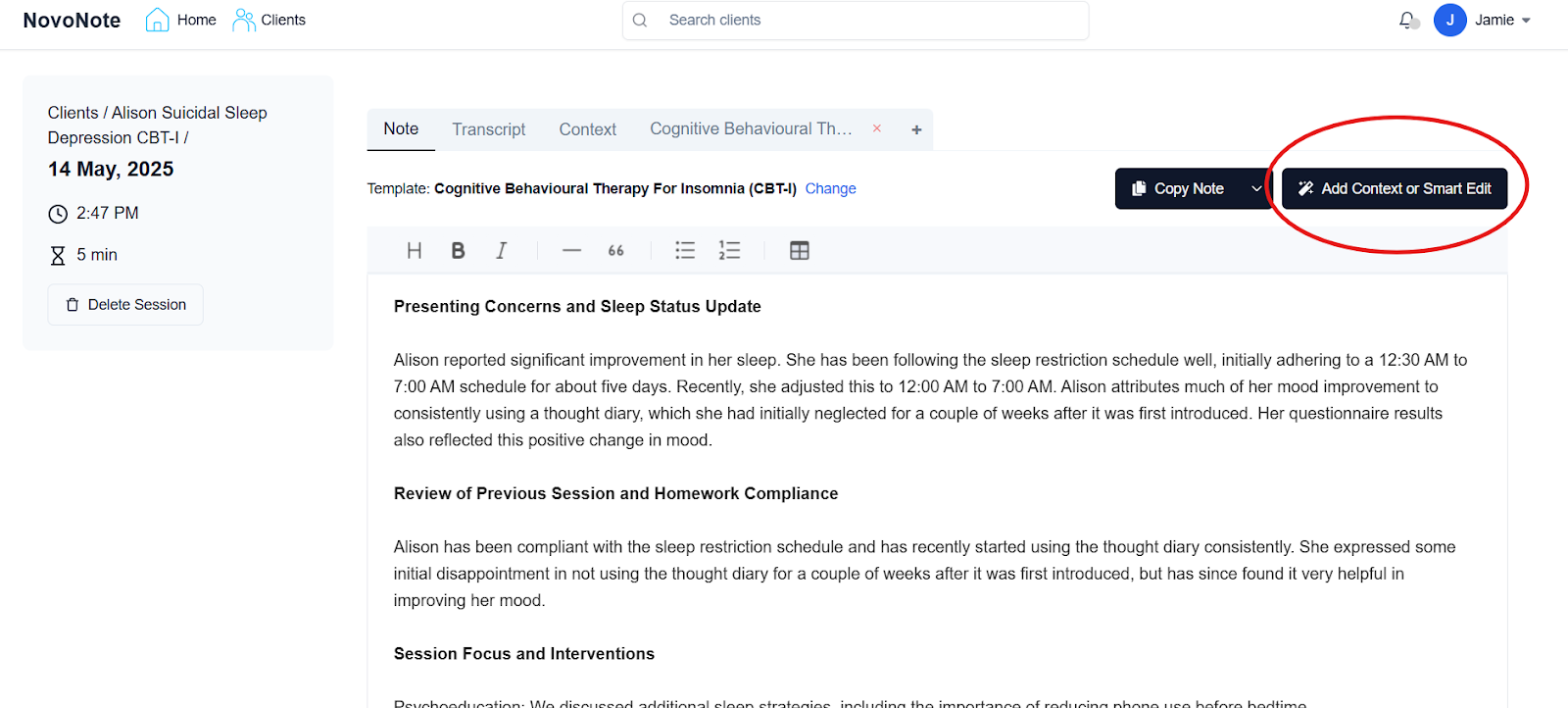
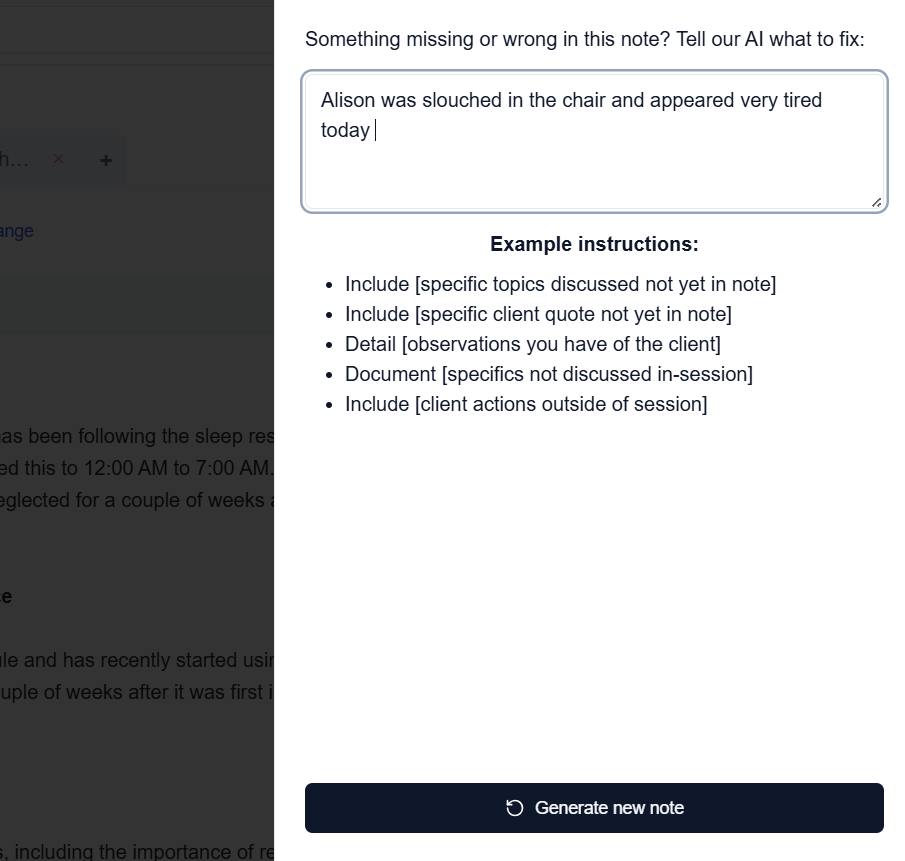
3. Clicking on the “Add Context or Smart Edit” button that appears after an initial session note has been generated:
Then
IMPORTANT
After adding context, your note or document is regenerated and aside from making your requested changes, will produce slightly different wording results each time.
Tips:
- If you would like to retain aspects of the original note, we recommend either:
- First copying and pasting the original note into a word processing program (like Word or Google Docs), and then regenerating the note with your instructions in the Add Context or Smart Edit box (method 3 described above). From the newly generated note, you can then copy and paste preferred pieces of text into your original note.
- Using Method 1 described above to add information or instructions into the "Context" tab, then using the "+" tab to generate a new note. The "Note" tab still contains your original note, while the "+" tab generates a new note with your context added. You can then copy and past preferred pieces of text into your original note.
- If you use the Add Context or Smart Edit feature regularly in order to get your desired results, it may be more beneficial (and save you time in the long run) to edit the wording of an existing template to best suit your needs.
Learn more about how to customise a template:
Adding/Customising a New Note Template
Was this article helpful?
That’s Great!
Thank you for your feedback
Sorry! We couldn't be helpful
Thank you for your feedback
Feedback sent
We appreciate your effort and will try to fix the article