Customising Notes Template in NovoNote
Custom templates allow you to tailor NovoNote to your specific clinical needs, preferred documentation style, and therapeutic framework. Whether you want to refine an existing template or create your own, NovoNote gives you full control over structure, tone, and prompts - ensuring notes reflect your practice.
How to Customise a Notes Template
1. Navigate to the Templates Settings
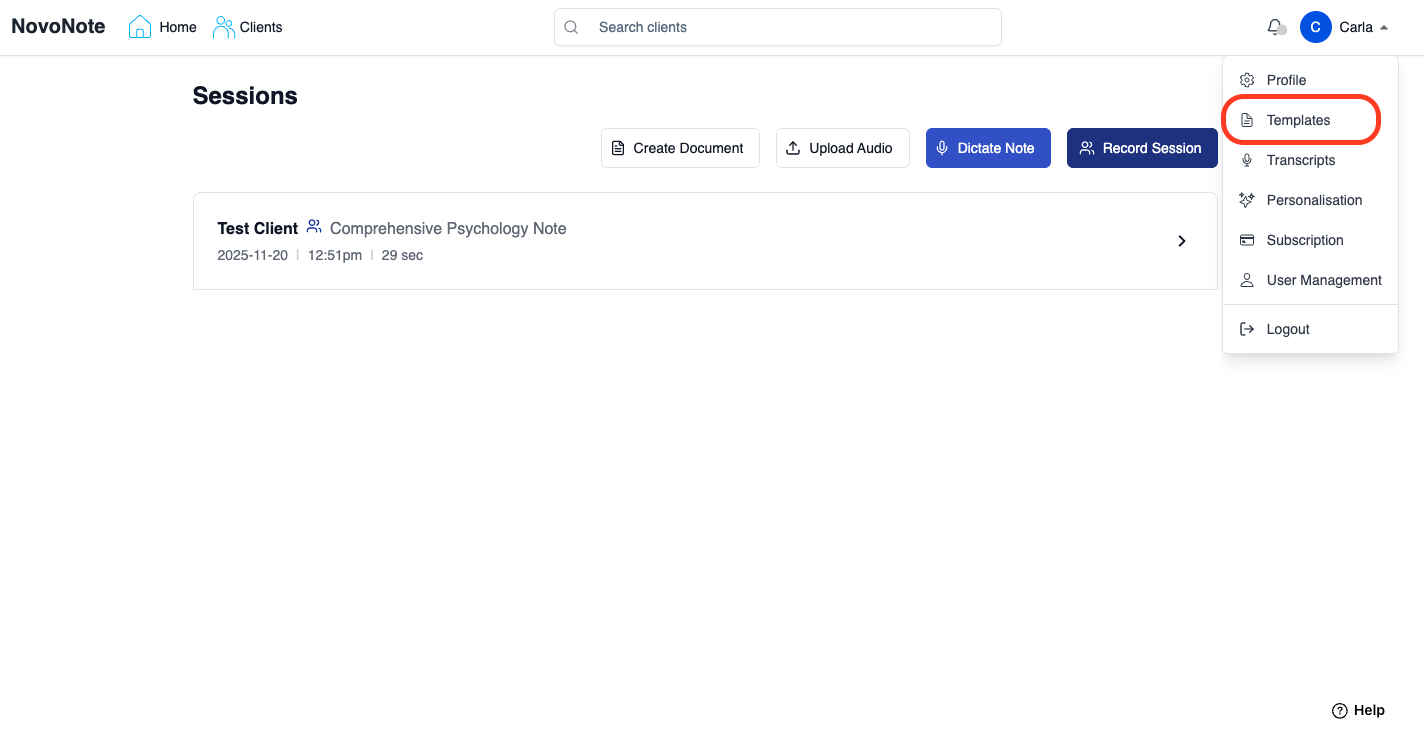
Go to the Settings menu (your name - top right corner).
Select "Templates"
2. Choose a Template to Edit or Create a New One
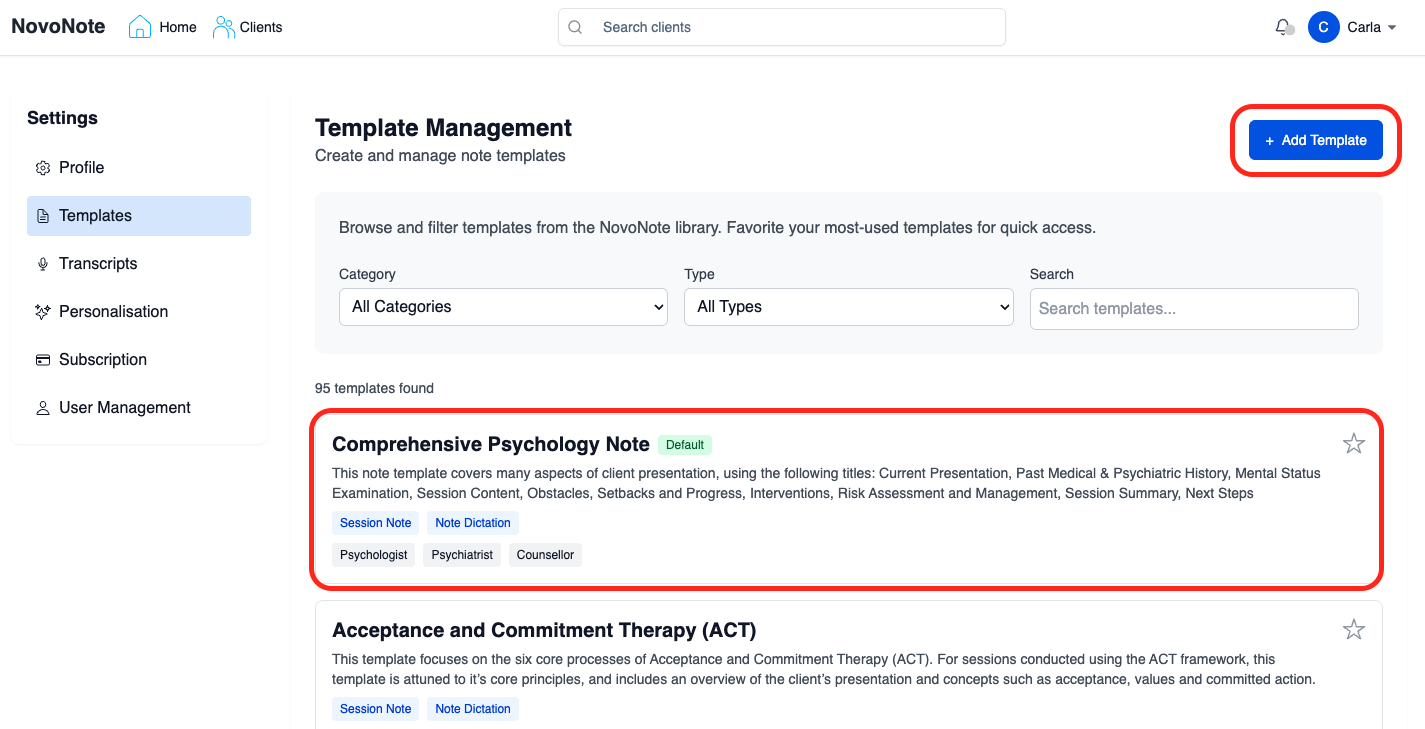
Select an existing template to customise, or
Click "Add Template" to create a new one from scratch.
3. Customise the Template
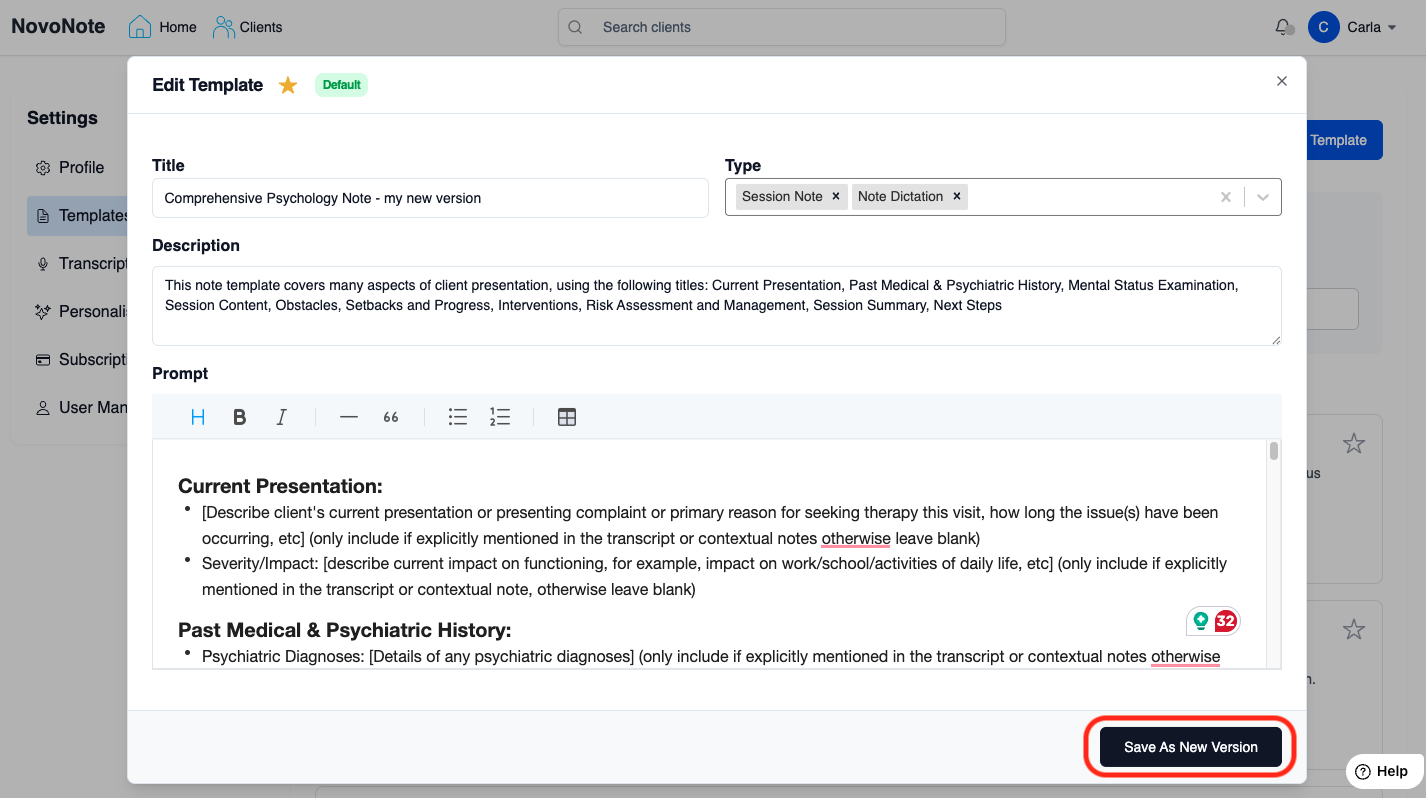
Edit the title, description and prompt to suit your clinical approach and documentation needs.

Tip: Here's a guide on how to write useful and effective prompts for NovoNote:
Writing Effective Prompts for AI Note-Taking
4. Save the Template
Select "Save" to apply the changes.
If you're editing an existing template provided by NovoNote, select "Save as New Version".
5. Set as Default or Add to Favourites (Optional)
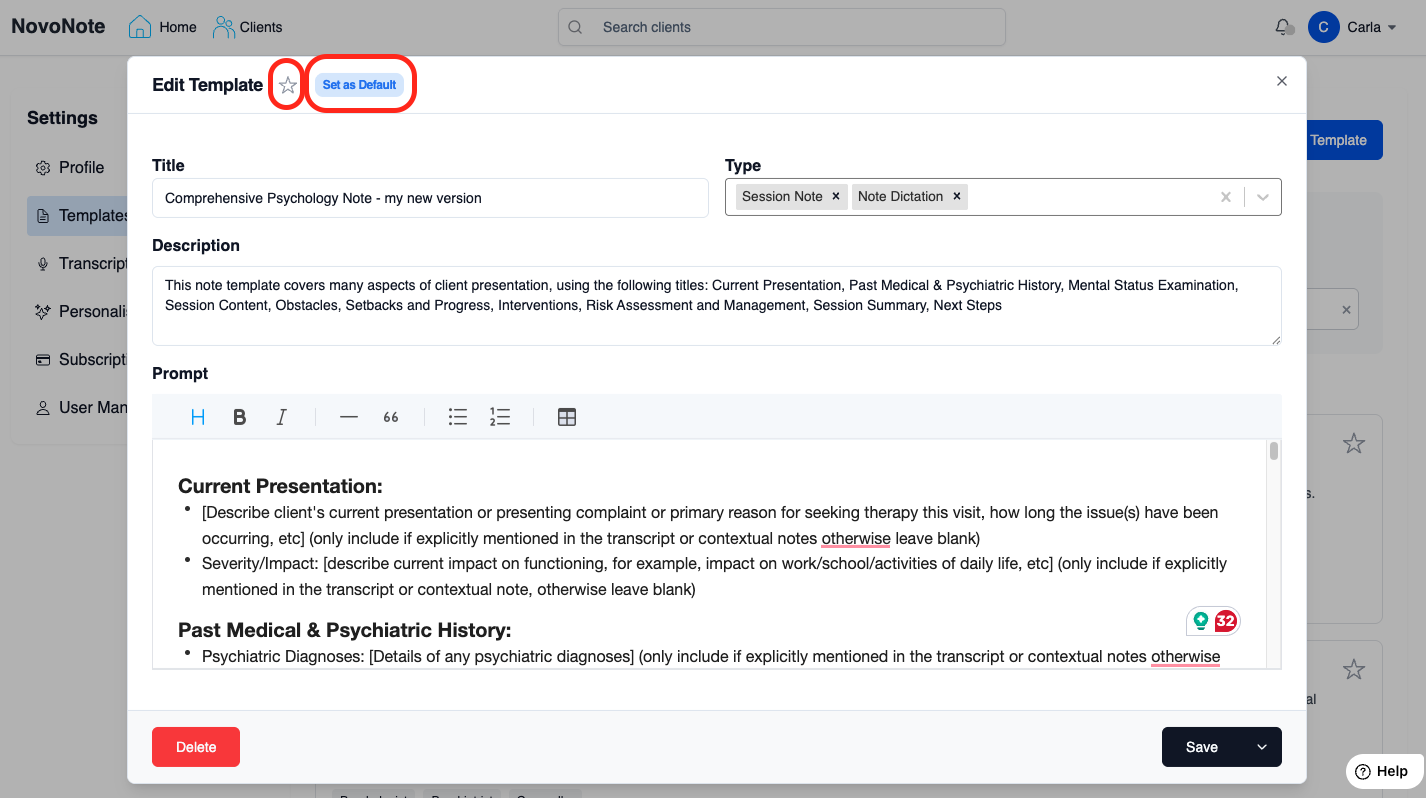
If you want to use this template as your primary notes format, select "Set as Default"
If you want this template to appear at the top of the list of templates so that it's easier to locate and use, click ⭐ to add it to your favourites.
Note that you first must have created and pressed "Save as New Version".
Deleting Notes Templates
You can delete any templates you have created:
1. Select the template you wish to delete.
2. Click on "Delete".

Please note that deleting templates only applies to those created by users.

The default note templates provided by NovoNote cannot be deleted or modified directly; however, they can be saved as a new version.
Watch a quick walk-through - Customising and saving your own note templates in NovoNote:
Was this article helpful?
That’s Great!
Thank you for your feedback
Sorry! We couldn't be helpful
Thank you for your feedback
Feedback sent
We appreciate your effort and will try to fix the article