There are new tools in NovoNote that allow users to more accurately adjust the formatting of their templates to produce more consistency in note outputs.
1. Settings ➔ Templates ➔ Open the template you wish to edit from the Templates screen
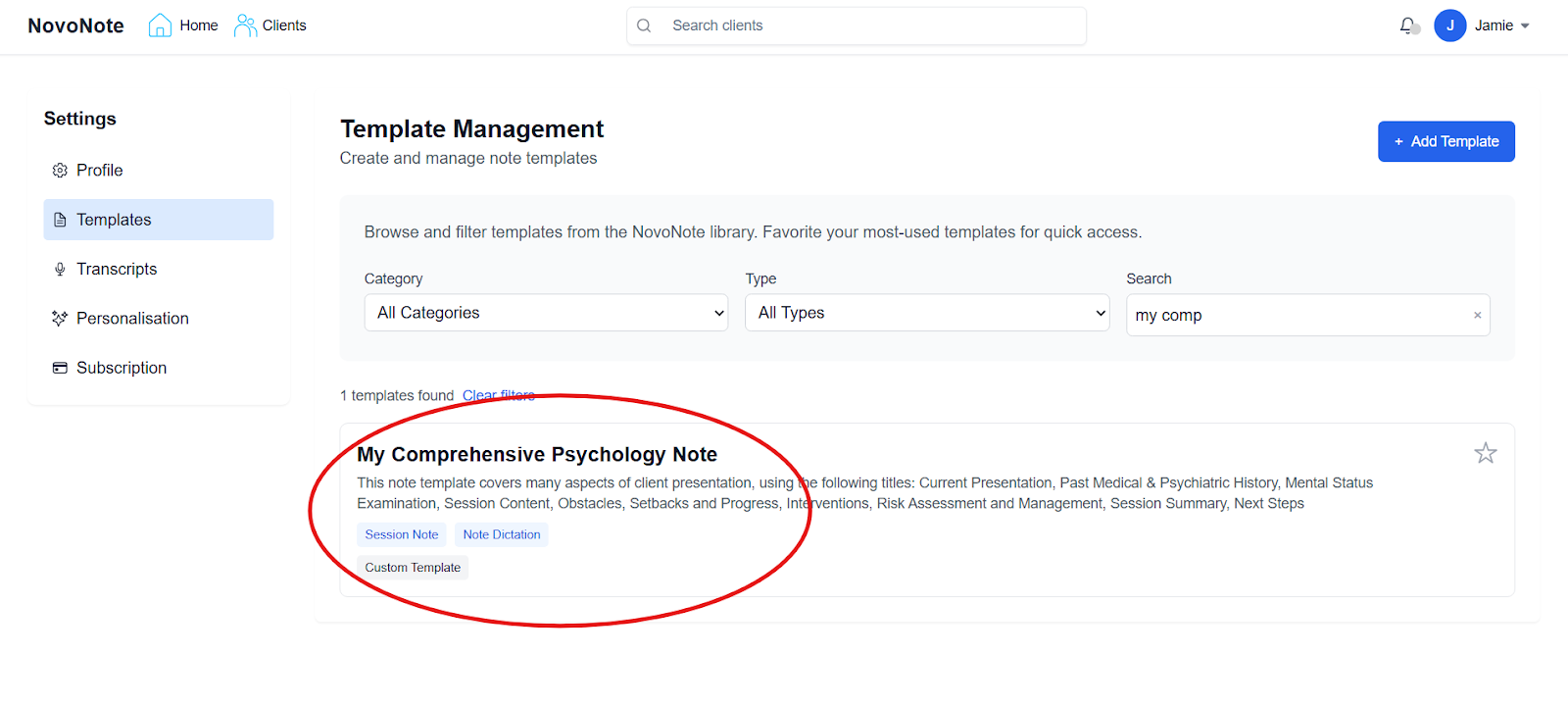
2. Find the formatting toolbar at the top of the Prompt text box
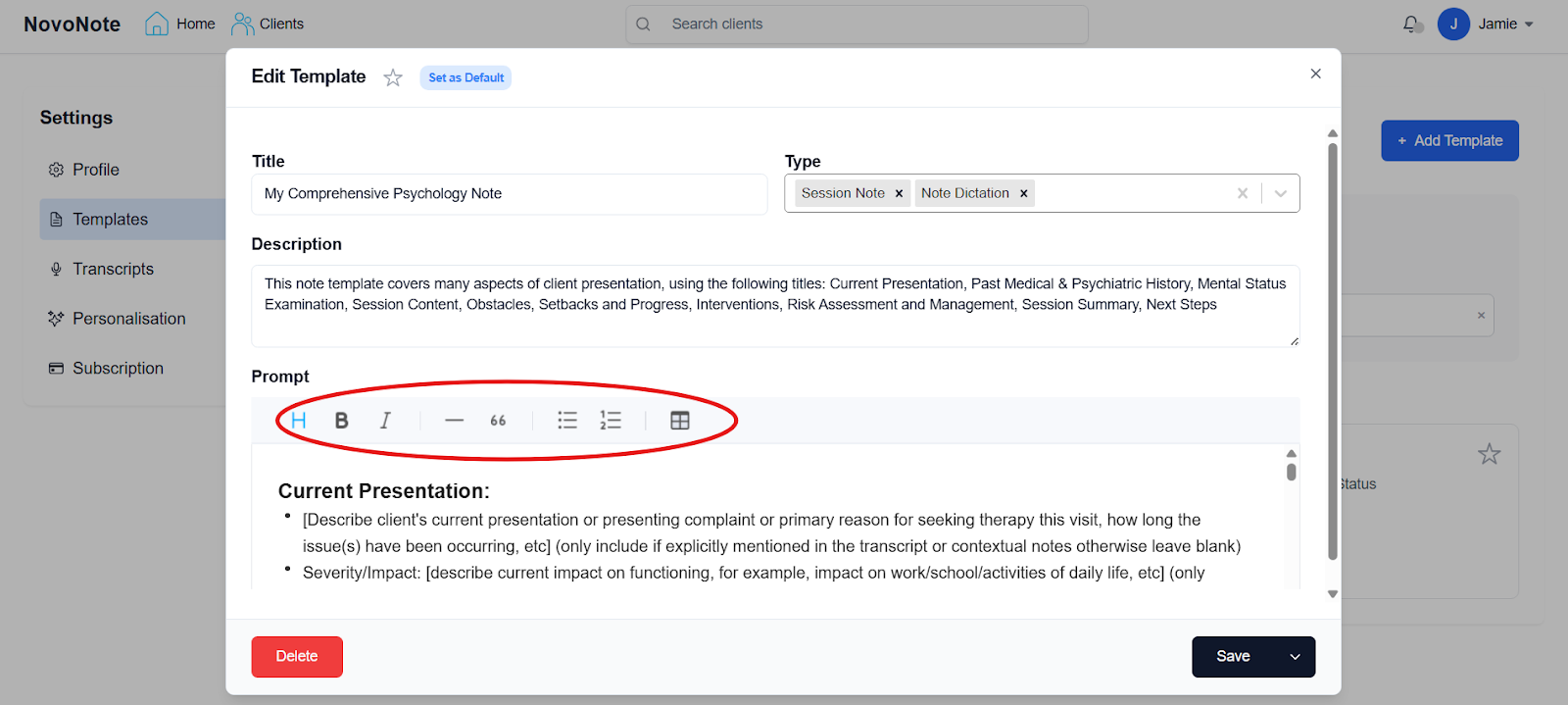
The formatting menu allows users to accurately determine how their text will be reproduced in a note, whether that is in dot points, numbered lists, narrative paragraphs, size of sub-headings etc.
Just click on the block or section of text in the prompt that you want to format, and then click on the corresponding icon in the formatting menu to format that text.
Customised formatting examples
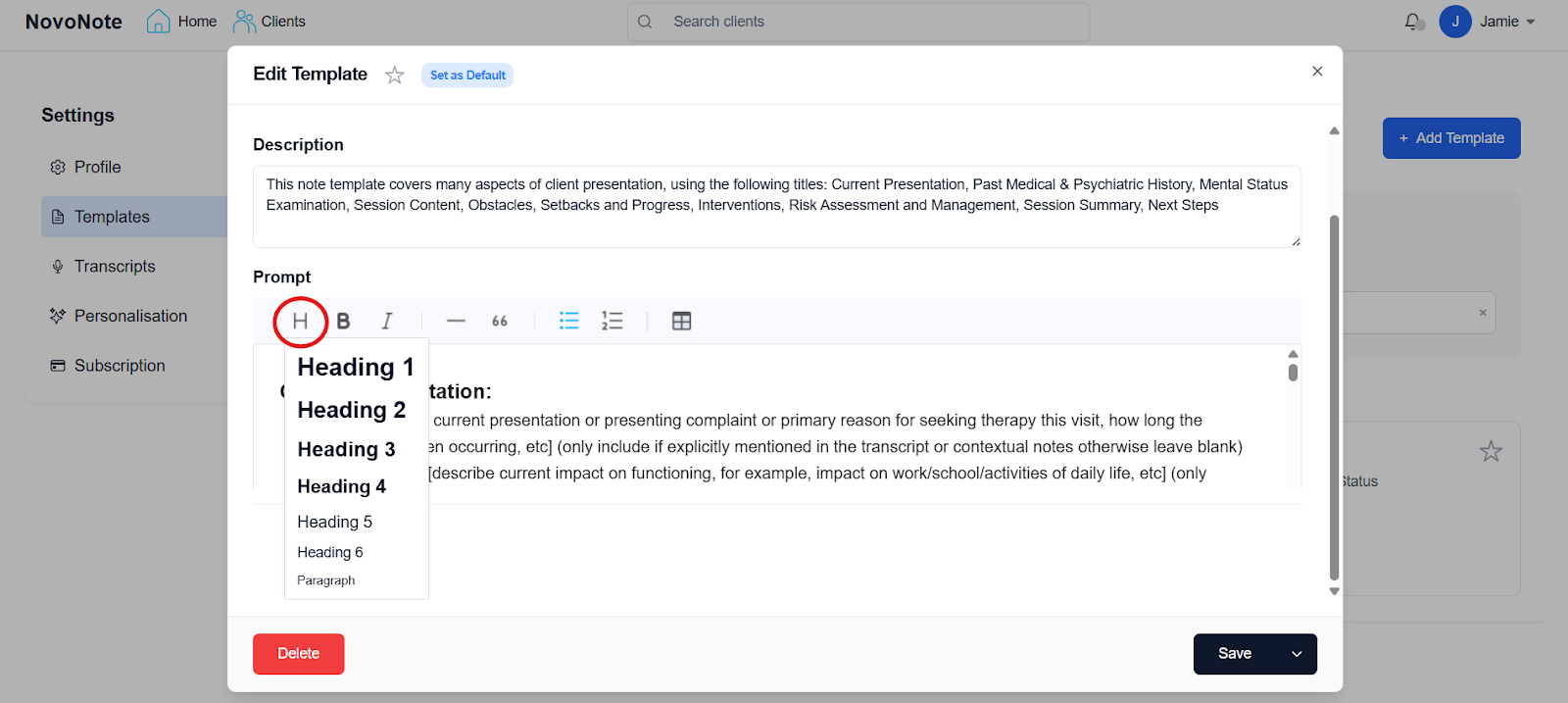
To change text from a paragraph (narrative / prose) to a heading, click on the “H” and choose the desired font size:
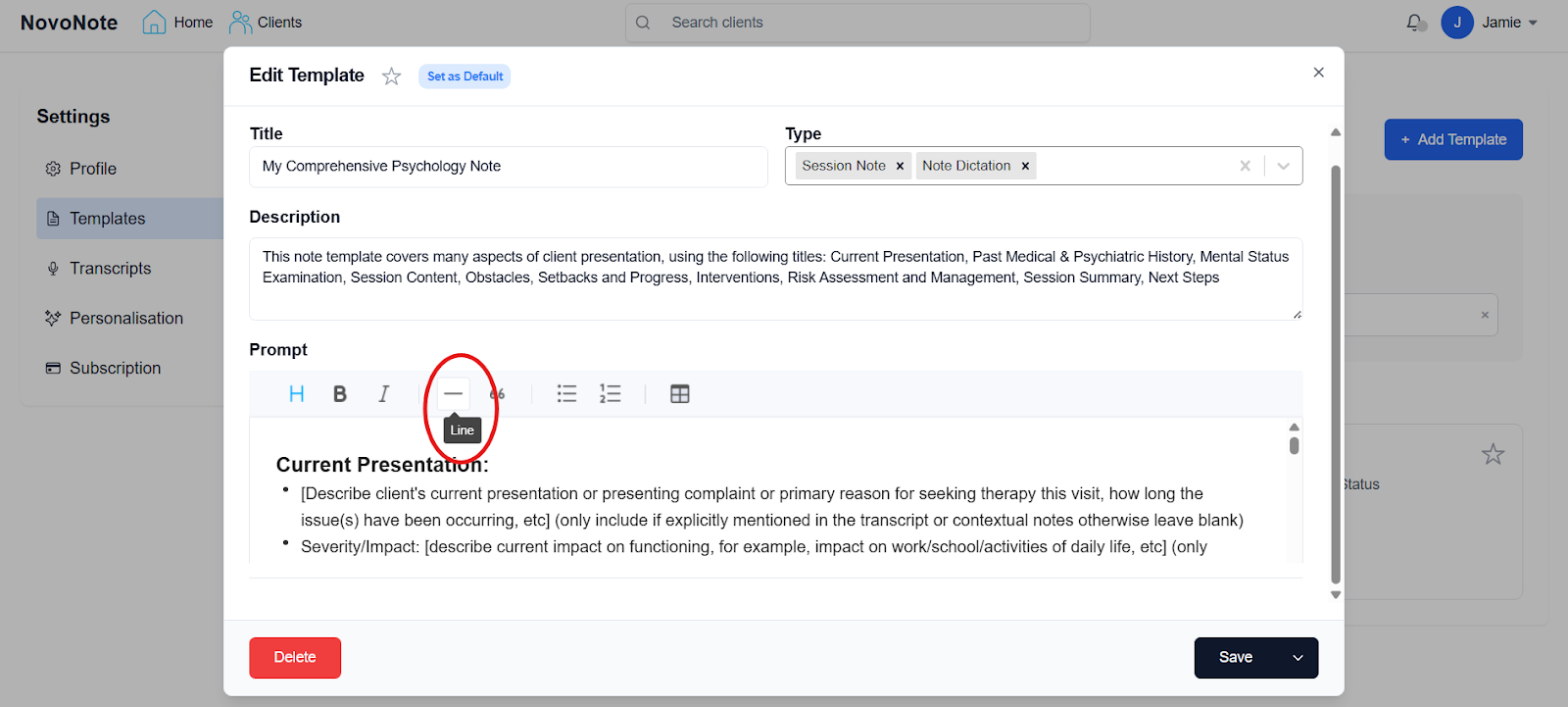
To add a printed line after a block of text or section, click on the “-” icon:
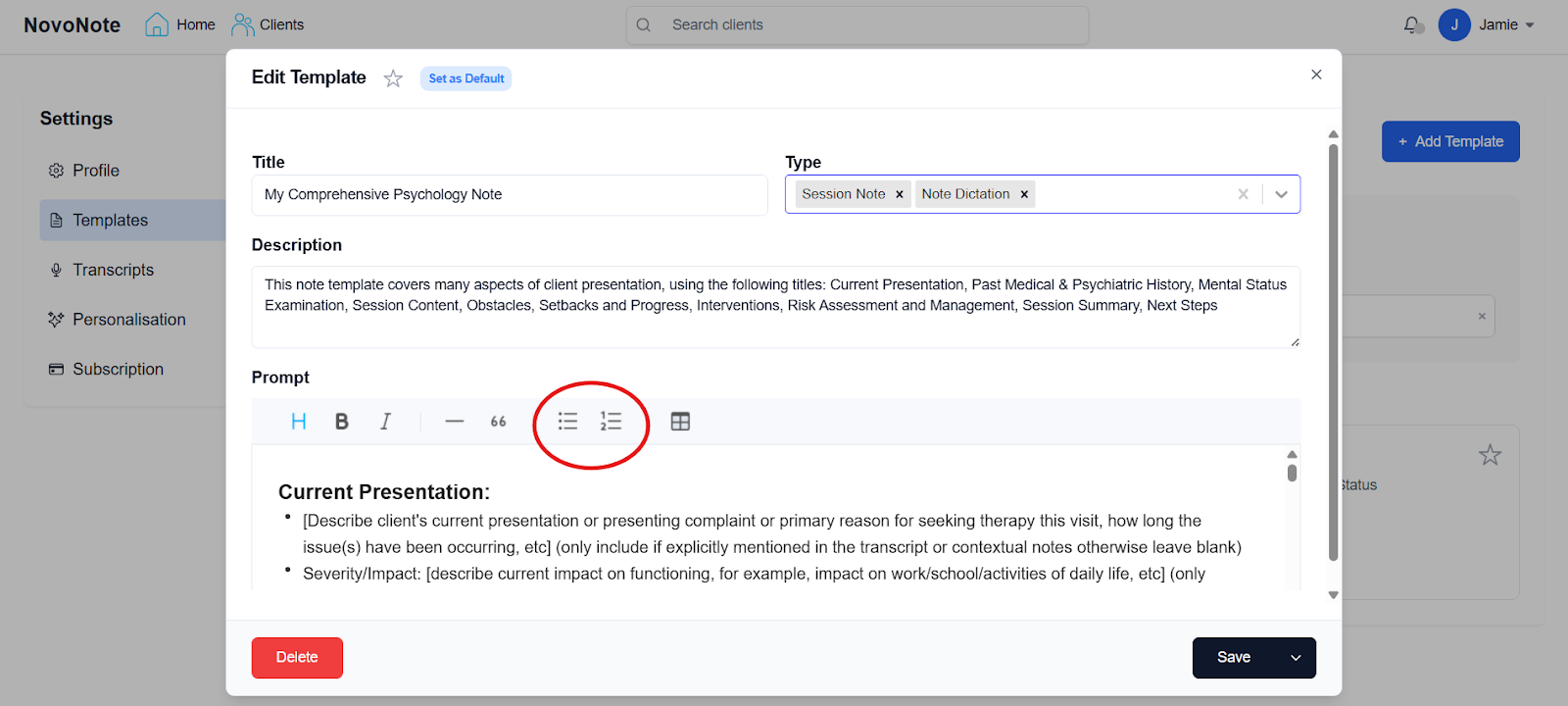
To make text either dot points or a numbered list, click on these icons in the menu:
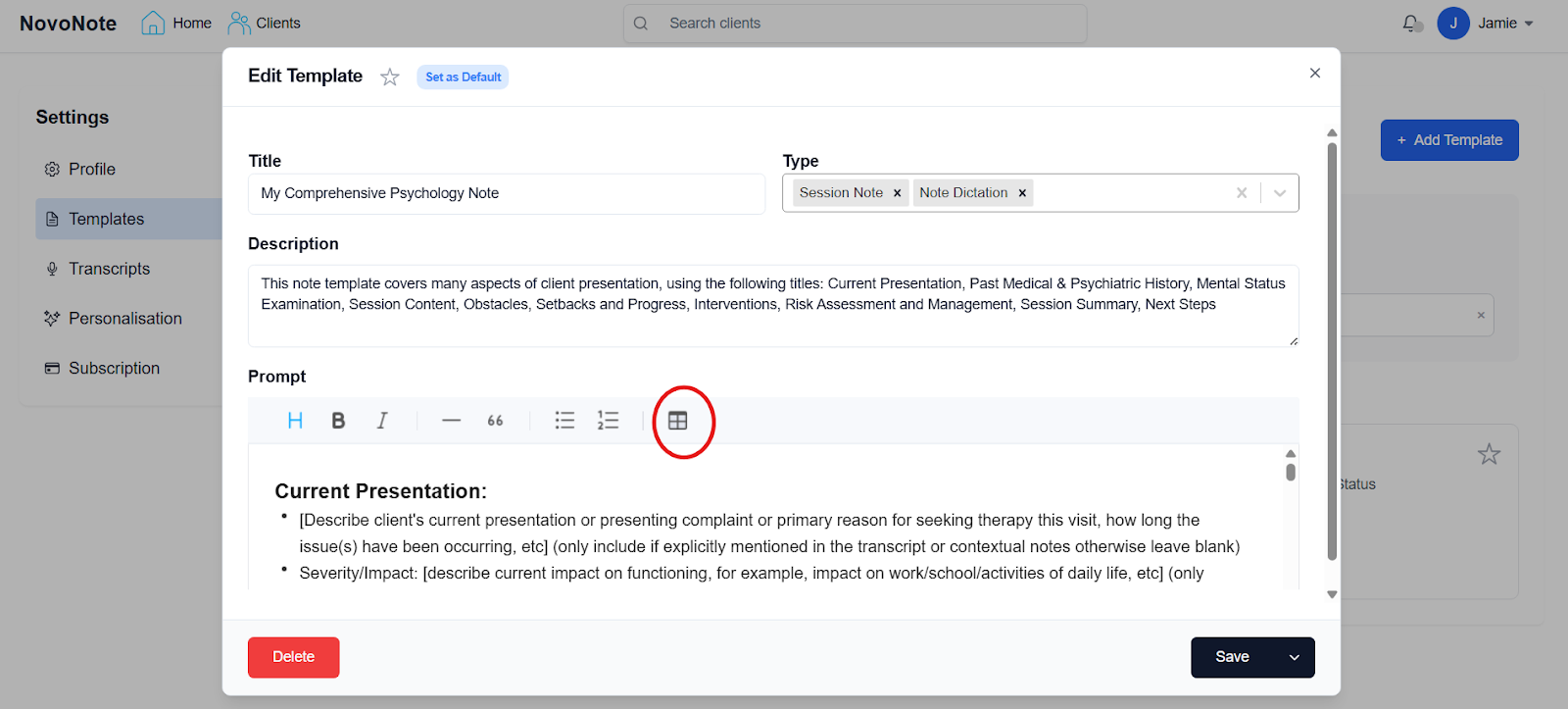
And to add a table to your template, click on this icon:
These new formatting tools can help users take control of the notes they produce from their custom templates.
Also see: Adding/Customising a New Note TemplateAdding/Customising a New Note Template
Adding/Customising a New Note Template
Was this article helpful?
That’s Great!
Thank you for your feedback
Sorry! We couldn't be helpful
Thank you for your feedback
Feedback sent
We appreciate your effort and will try to fix the article