Detail Level settings help you tailor your documentation to match your style and needs, ensuring you capture the right amount of information for every situation.
You can select from three levels of detail:
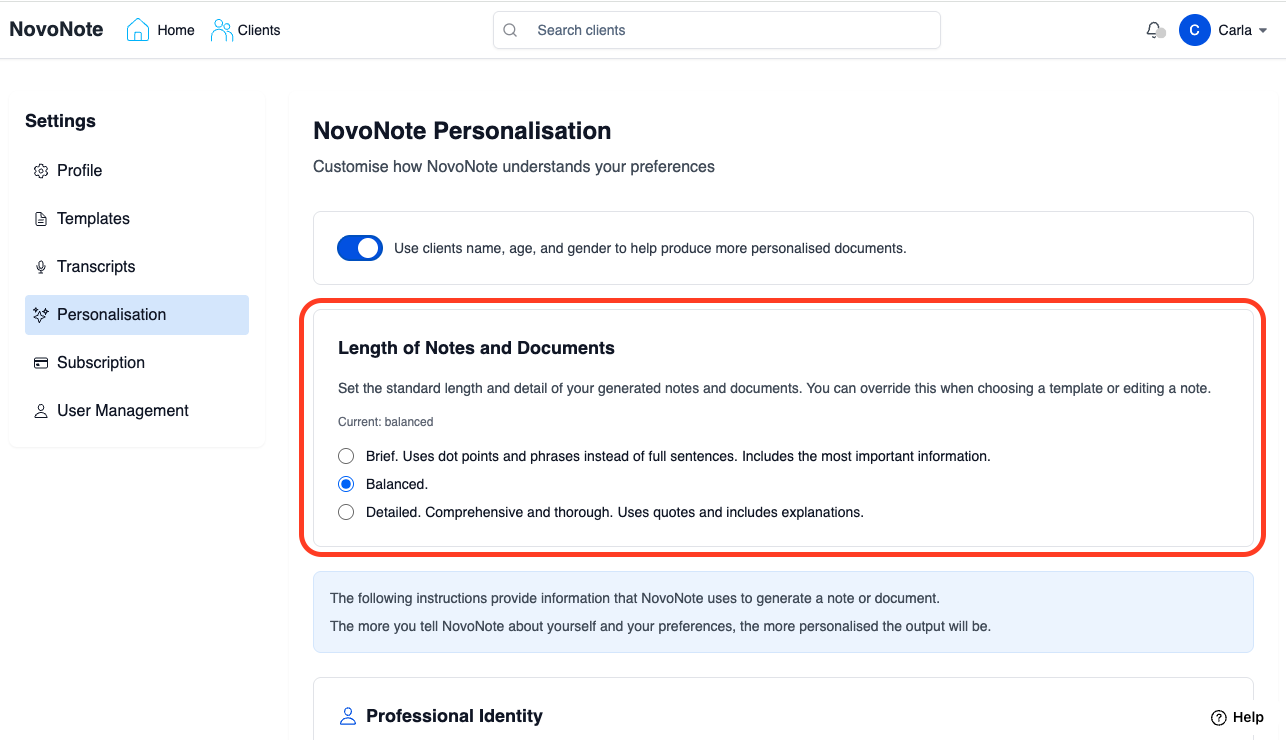
- Brief: Uses dot points and phrases instead of full sentences. Includes the most important information, suitable for quick summaries.
- Balanced: Standard length and detail as specified in the template, for balanced, standard notes.
- Detailed: Comprehensive and thorough. Uses quotes and includes explanations, for rich, comprehensive documentation.
There are several ways to access this feature, outlined below.
Personalisation Settings:
First, you can navigate to the Personalisation settings page to adjust the length of notes and documents. Making the change here will apply this setting to every note and document you produce until you change the setting again.
Adjust as you go:
Or, you can simply change the setting as you go. Whenever you create a document, or change the template before recording a session or re-generating a new note, you are given the option to adjust the level of detail that you will see in your note. Just follow the simple steps below.
Before a session:
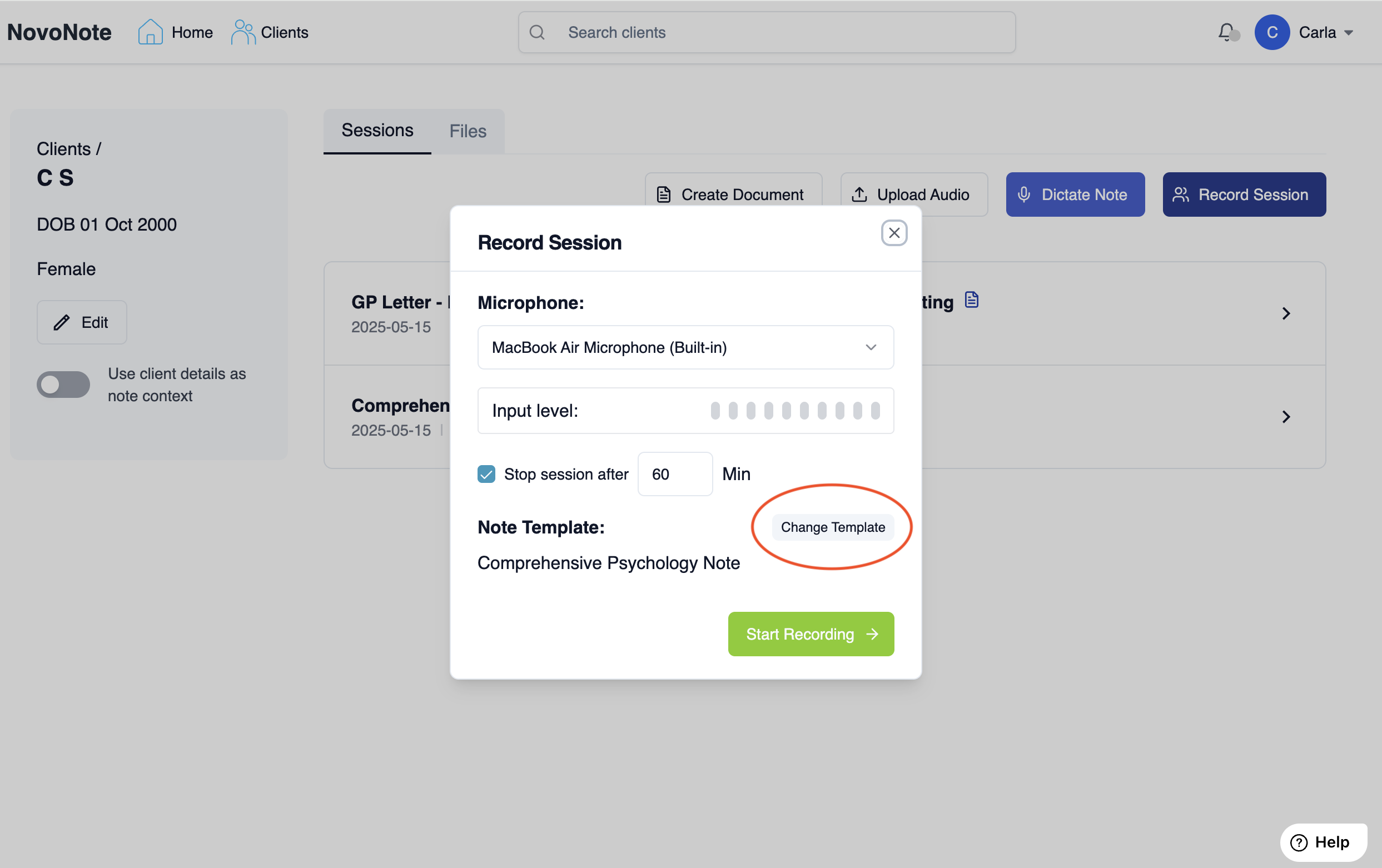
1. Click on "Record Session" and then "Change Template"
2. Use the sliding bar to adjust the level of detail required, and select your template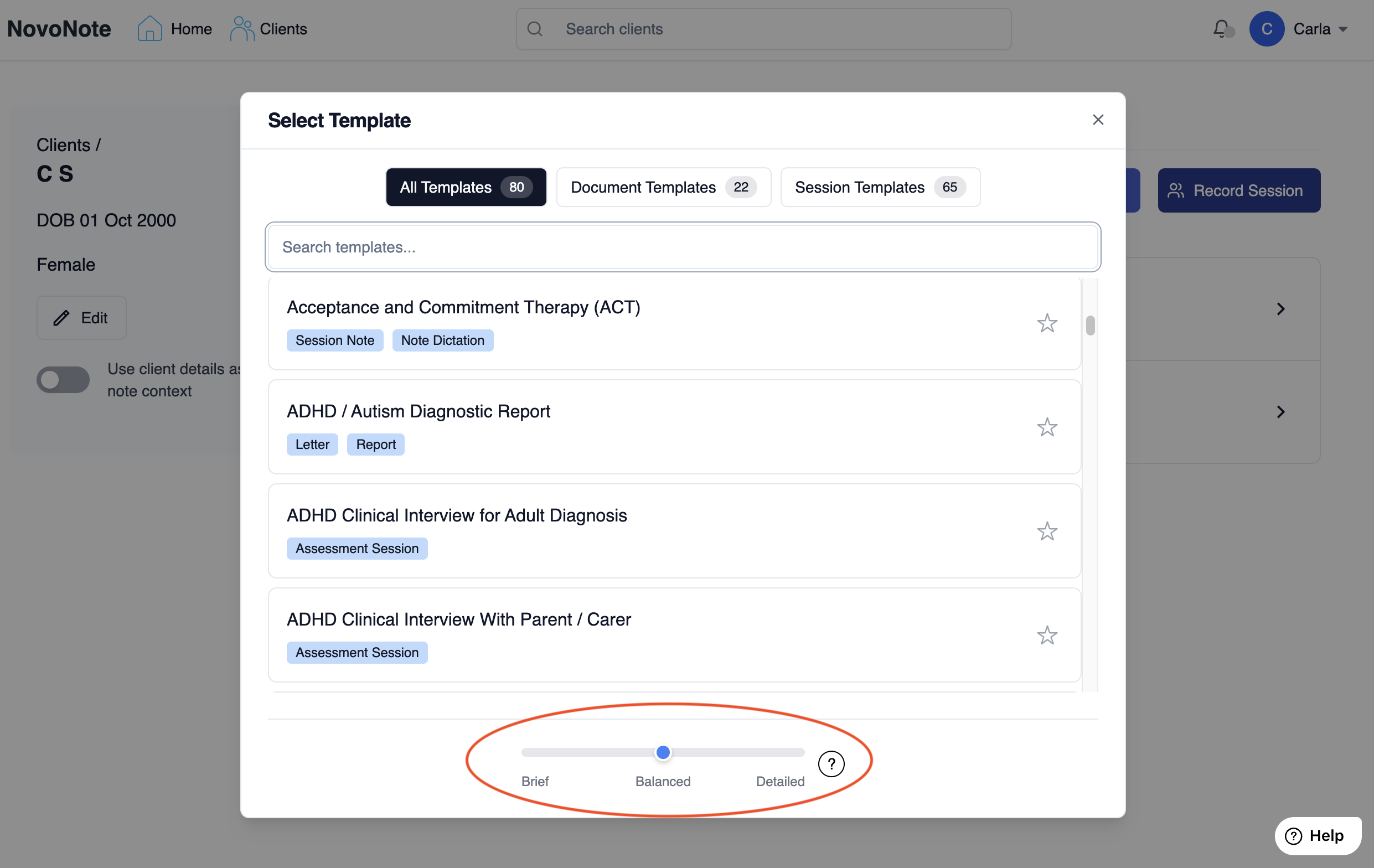
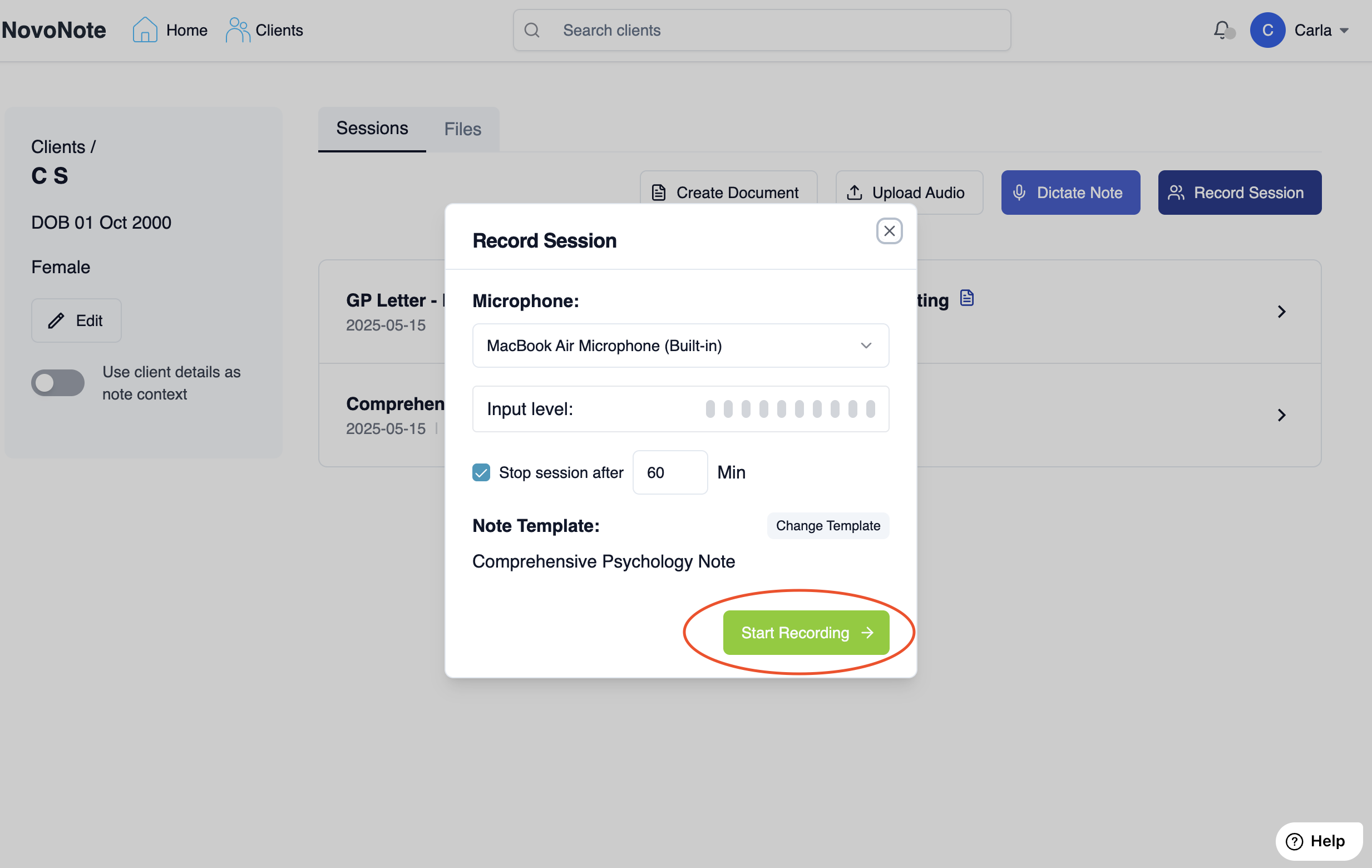
3. Click "Start Recording" and proceed with the session as usual
After a session:
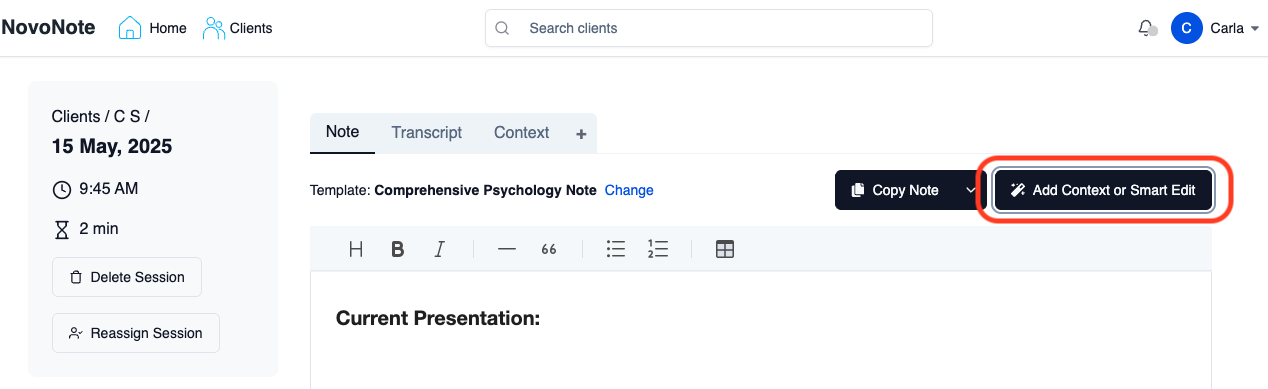
You also have the flexibility to adjust the level of detail after a session, when reviewing your session note, by clicking "Change" template, or clicking the "Add Context or Smart Edit" button.
1. Click the "Change" template button, at the top of your session note, as shown below.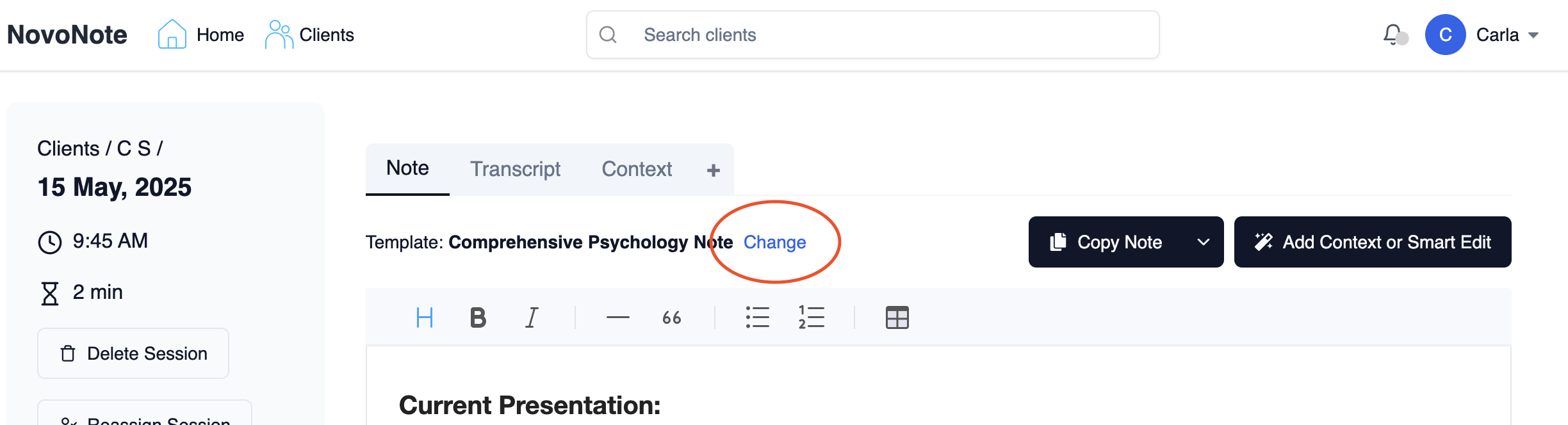
2. Use the sliding bar to adjust the level of detail required, and click "Generate Note" to apply your preferred changes to the level of detail in a regenerated session note.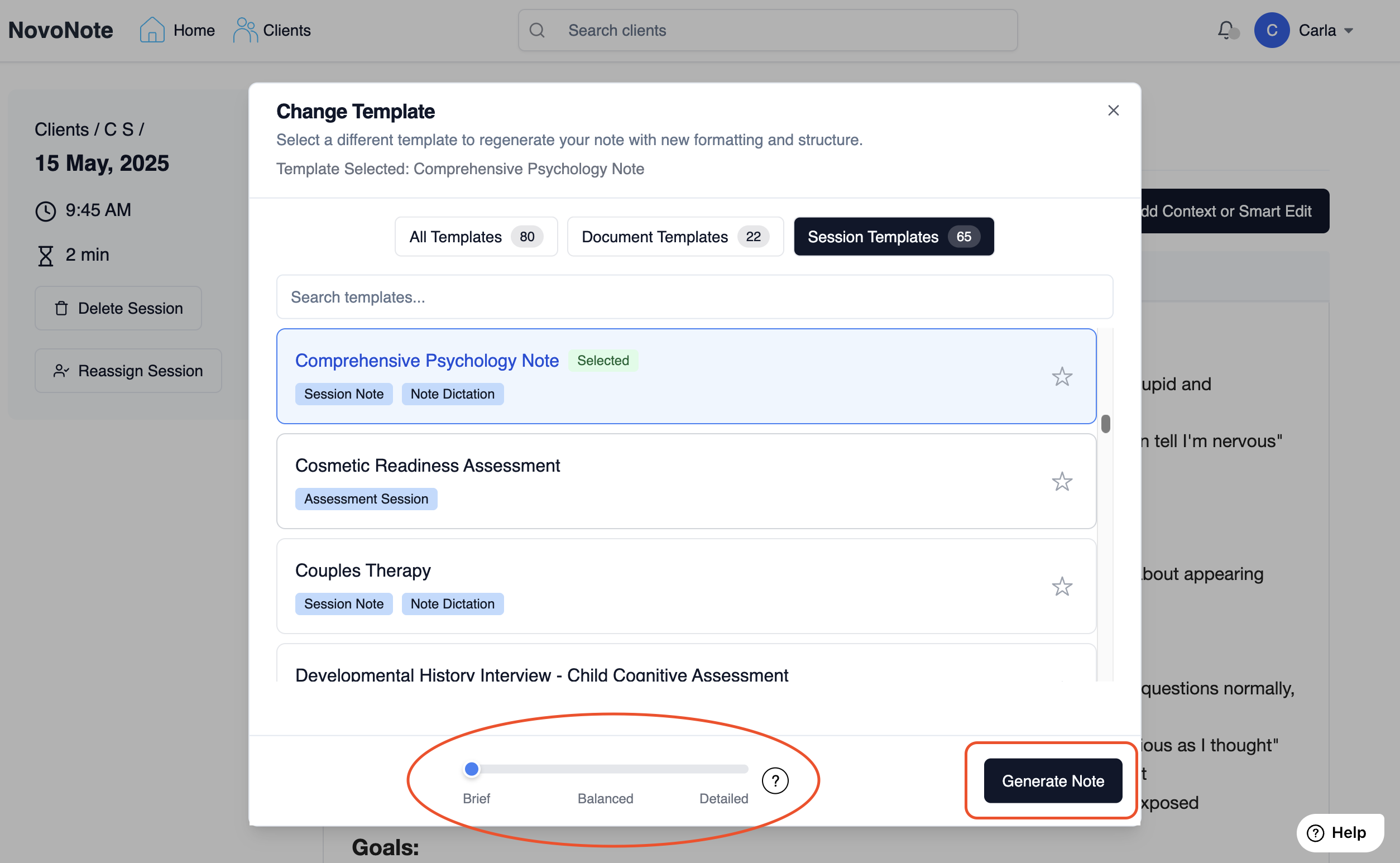
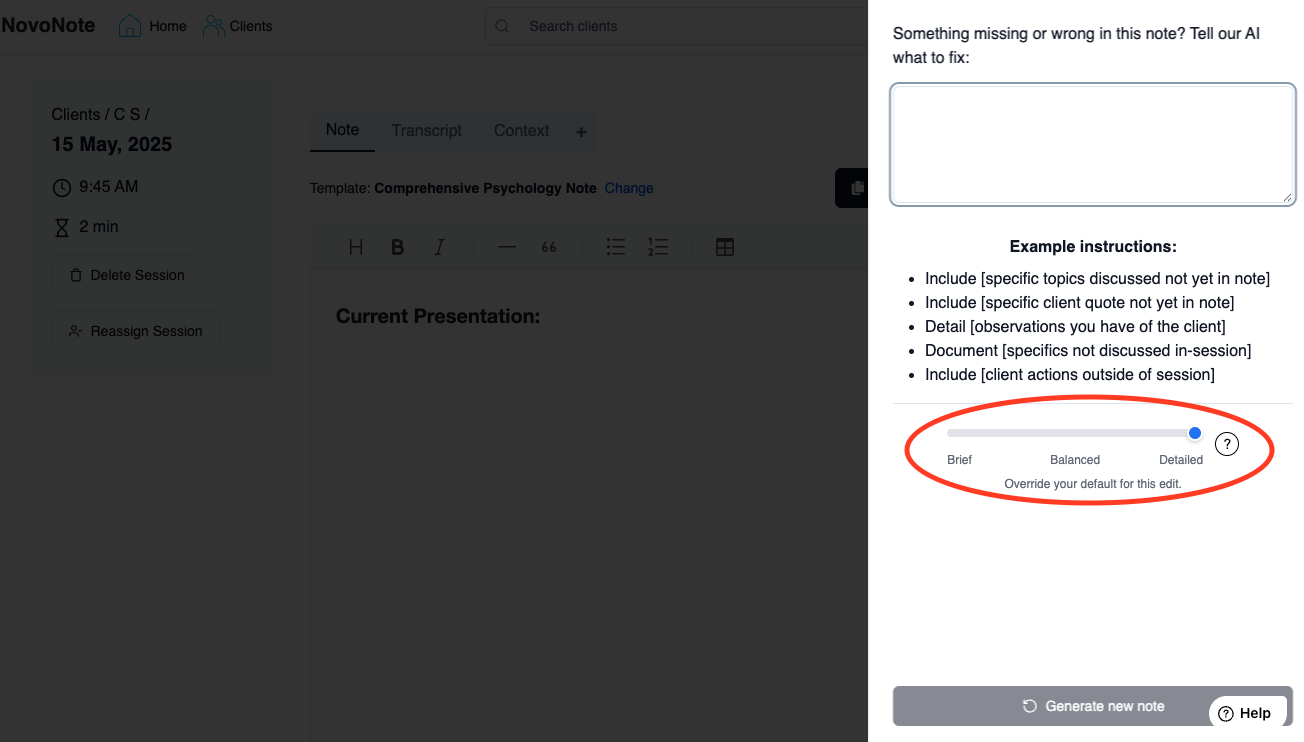
3. Alternatively, click on "Add Context or Smart Edit", and adjust the toggle from here:
When creating a document:
1. Follow the steps to create a document, such as a letter or report
To Learn More, See: Generating Documents from Multiple Sessions Over Time2. Use the sliding bar to adjust the level of detail required, and click "Generate Document"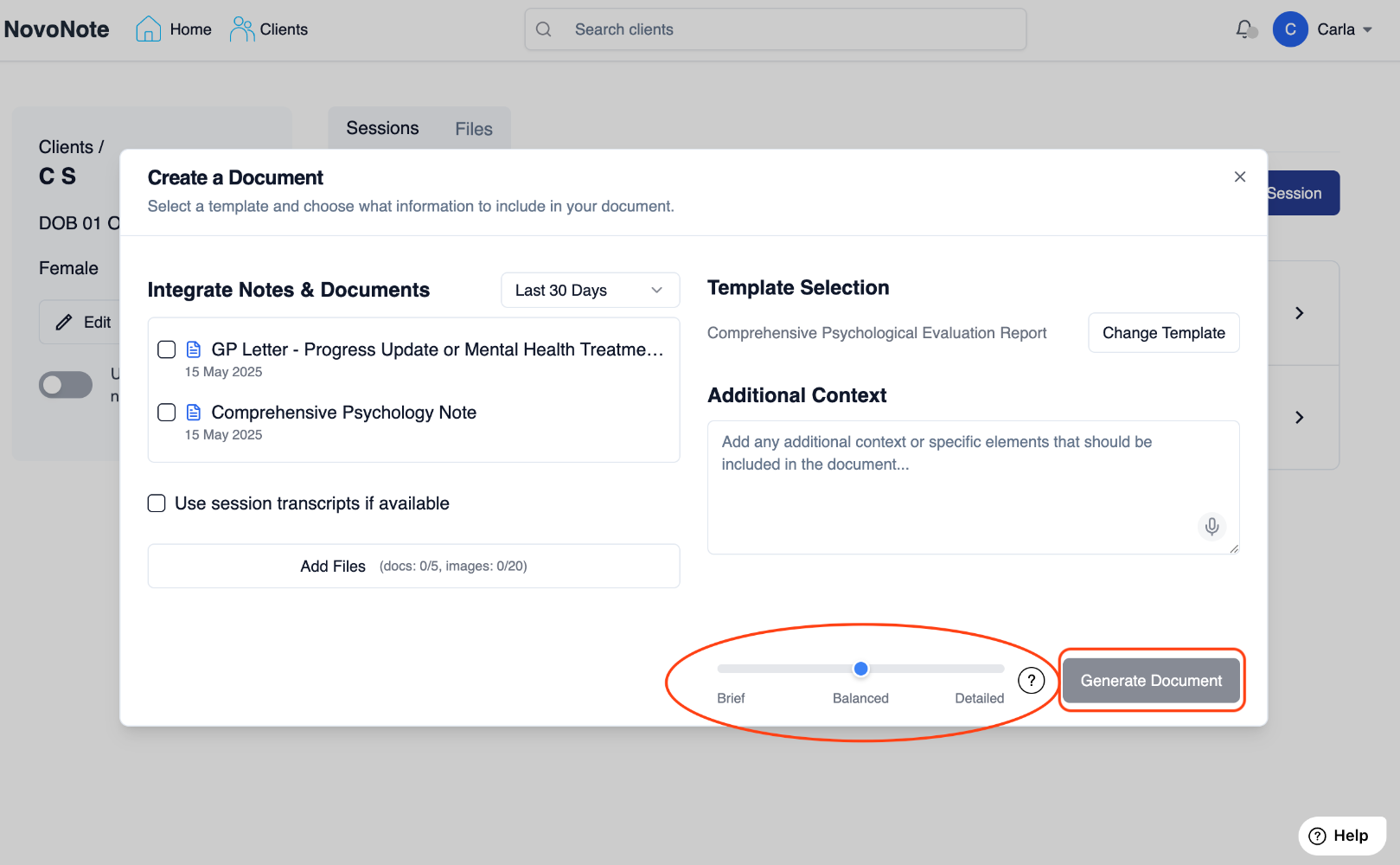
As with a session note, you can click the "Change" button to alter the detail setting even after generating your document.
Was this article helpful?
That’s Great!
Thank you for your feedback
Sorry! We couldn't be helpful
Thank you for your feedback
Feedback sent
We appreciate your effort and will try to fix the article