Telehealth has become an essential part of clinical practice, making reliable audio capture critical for accurate documentation.
Telehealth Mode has since been introduced in NovoNote, designed to improve transcript accuracy and AI note quality during your telehealth sessions.
This feature helps NovoNote better detect and process audio, and is particularly helpful in cases where only one participant’s audio is typically captured, or when headphones are being used.
With Telehealth Mode enabled, NovoNote can:
Improve speech detection during telehealth calls
Reduce issues related to incomplete or empty transcripts
Better structure clinician-led or one-sided conversations
Generate more reliable AI notes from remote sessions
This helps ensure your clinical documentation remains accurate and useful.
When Should I Use Telehealth Mode?
We recommend enabling Telehealth Mode if you are:
Conducting sessions via Zoom, Teams, Google Meet, or similar platforms
Running fully remote or hybrid telehealth practices
Experiencing messages such as “No transcript content found”
Noticing transcripts where only one speaker is consistently detected
For in-person sessions with balanced audio input, standard mode remains suitable.
Important Notes
Telehealth Mode works best when enabled before the session starts.
For best results, ensure your microphone is selected correctly in your device settings. This feature does not replace proper microphone placement or platform audio settings.
Currently, the system requirements for Telehealth Mode includes the following:
- Windows Desktop: Chrome or Edge browsers
- Mac: Chrome browser
NovoNote Telehealth Mode works with headphones, and detects audio from all parties to the call. Our voice and speaker detection works in one-on-one calls as well as group sessions.
Where supported, we encourage you to use Telehealth Mode wherever possible for the best transcription experience.
Note:
When using the "Screen Sharing" function in the browser, NovoNote does not capture any video. The "Screen Sharing" feature only captures audio from the selected platform/screen.
If you’re using a Mac, we recommend installing the Chrome browser and using Telehealth Mode for the best transcription experience.
If you are unable to use Chrome, you can follow the previous guidelines for capturing audio from telehealth sessions. (Reference: Using NovoNote in Telehealth Sessions)
How to Use Telehealth Mode
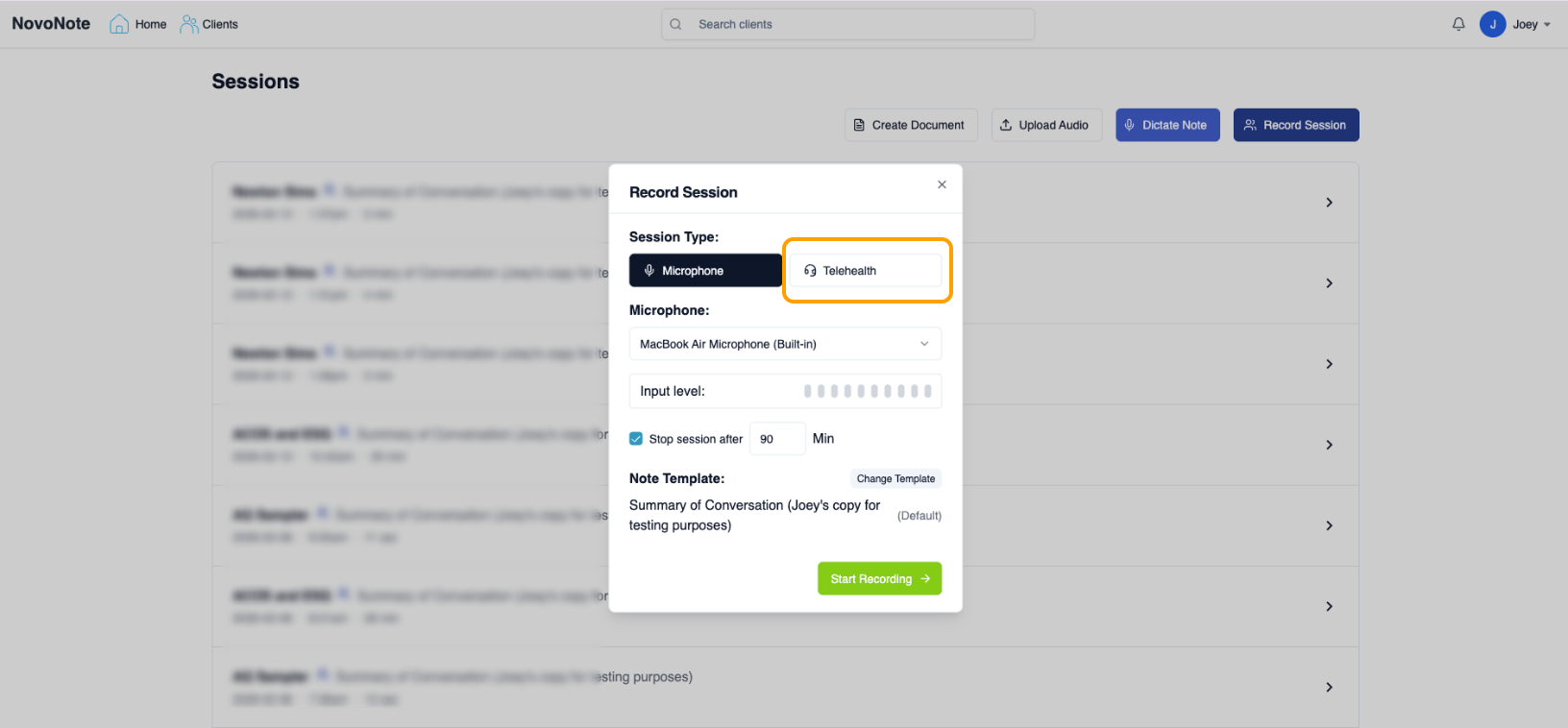
1. Start a session in NovoNote and select “Telehealth”.
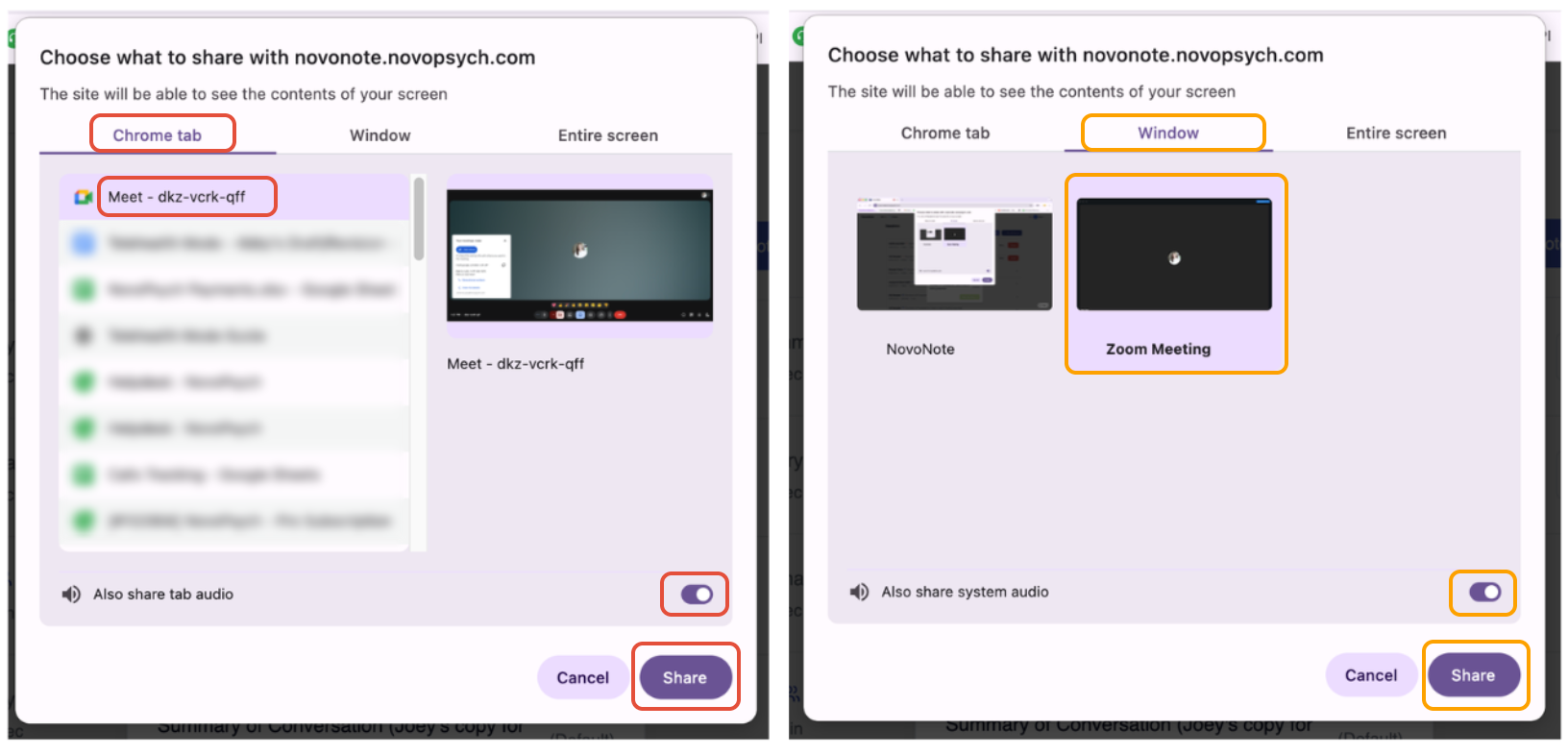
2. Share your telehealth software window or browser tab. Always enable “Sharing Audio” to capture session audio reliably.
Telehealth Mode works with common video-conferencing and telehealth platforms such as Zoom, Google Meet, Zanda and similar platforms.
If your telehealth software is running in a browser, ensure you select the correct browser tab.
If it is running as a desktop application, ensure the application window is selected.
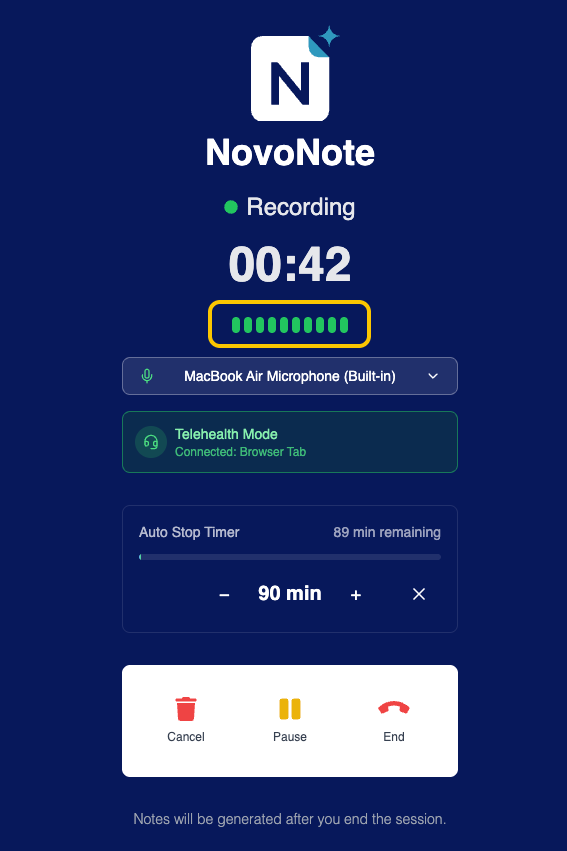
3. During recording, a Telehealth Mode indicator will show that audio capture is active. Always ensure that the selected microphone is actively picking up audio from both participants.
When someone speaks, the audio level indicator will respond with green bars moving up and down, confirming that sound is being detected.
If the bars remain static, audio may not be capturing correctly and microphone settings should be checked before continuing the session.
Related User Guides:
We are continuing to enhance Telehealth Mode and expand compatibility across more platforms and devices. If you have any feedback or questions around this feature, please feel free to share them with us via info@novopsych.com.Was this article helpful?
That’s Great!
Thank you for your feedback
Sorry! We couldn't be helpful
Thank you for your feedback
Feedback sent
We appreciate your effort and will try to fix the article