Novonote's Genograms feature allows you to create, save, and work with family relationship maps directly within a client's record in NovoNote. This structured visual representation of relationships and history is quickly generated by NovoNote, requiring no external tools or manual diagramming by the clinician. These genograms can be used by clinicians to support case conceptualisation, treatment planning, client engagement, and documentation.
What is a NovoNote genogram?
A genogram is a visual diagram of a client's family relationship system across generations. In NovoNote, genograms can capture relationship dynamics, significant events, patterns of mental health or medical history, and intergenerational themes relevant to clinical practice.
In NovoNote, genograms are:
- Stored within the client's profile
- Editable across sessions as new information emerges
- Available as a reference when using JAN for case conceptualisation
How to create a genogram
1. Navigate to a client's record and click on the "Genogram" button
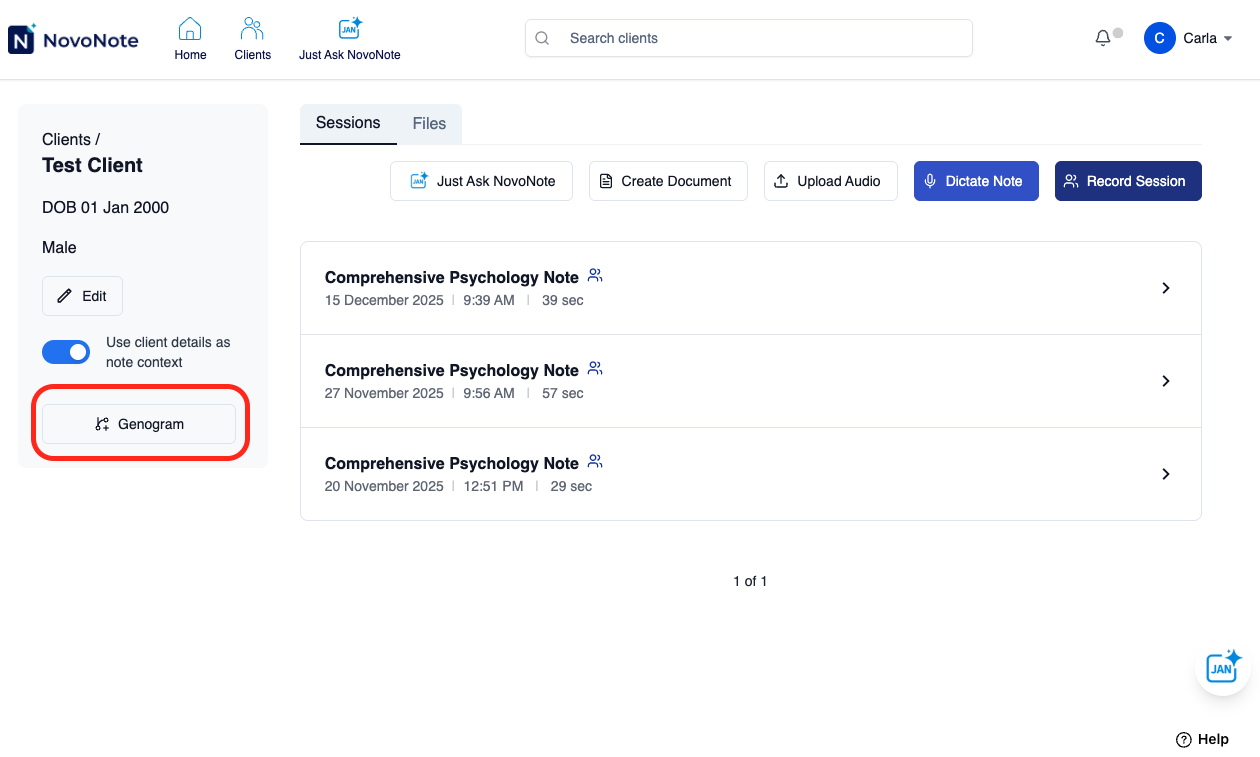
NovoNote will check your transcripts and notes for any family members and relationships.
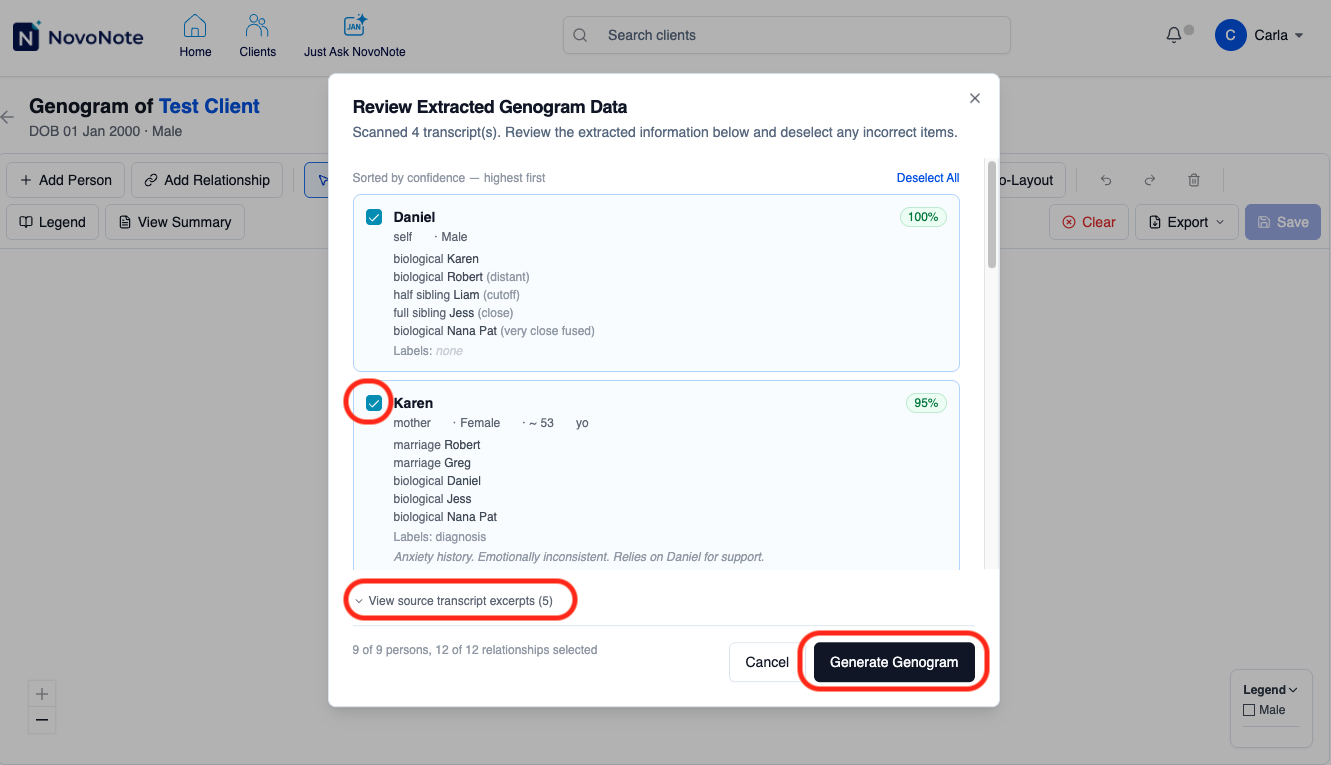
2. Review and edit extracted genogram data
Next, you will see a list of individuals in the client's relationship system. This is where you review and can deselect any incorrect individuals by unticking the checkbox on the left. To verify NovoNote's information, you can click on "view source transcript excerpts"
To proceed, click "Generate Genogram"
3. Explore, edit or add to the genogram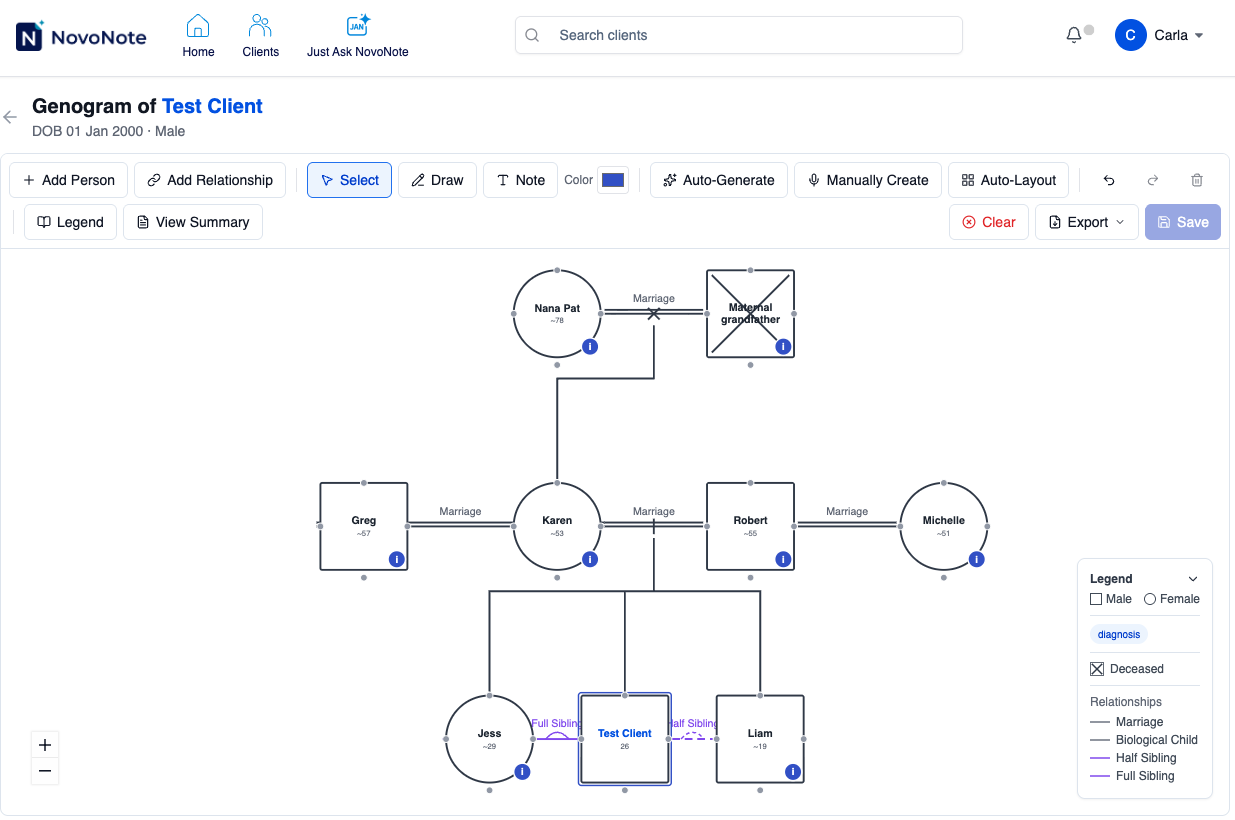
From this view, numerous features and rich data are available! Below are some tips for navigating and editing your genogram:
- Hover over elements (such as the "i", an individual, or a relationship line) to view pop-ups containing relevant relationship information.
- Click on any individual to open a panel through which you can add or edit their details, or add annotations. For example, you may wish to include relevant mental health or medical history, or relational dynamics.
- Zoom in or out using the "+/-" button in the bottom left, or move around the genogram by clicking and dragging the screen.
- The "View Summary" button provides a summary of all people, relationships, households, notes, and labels in the genogram.
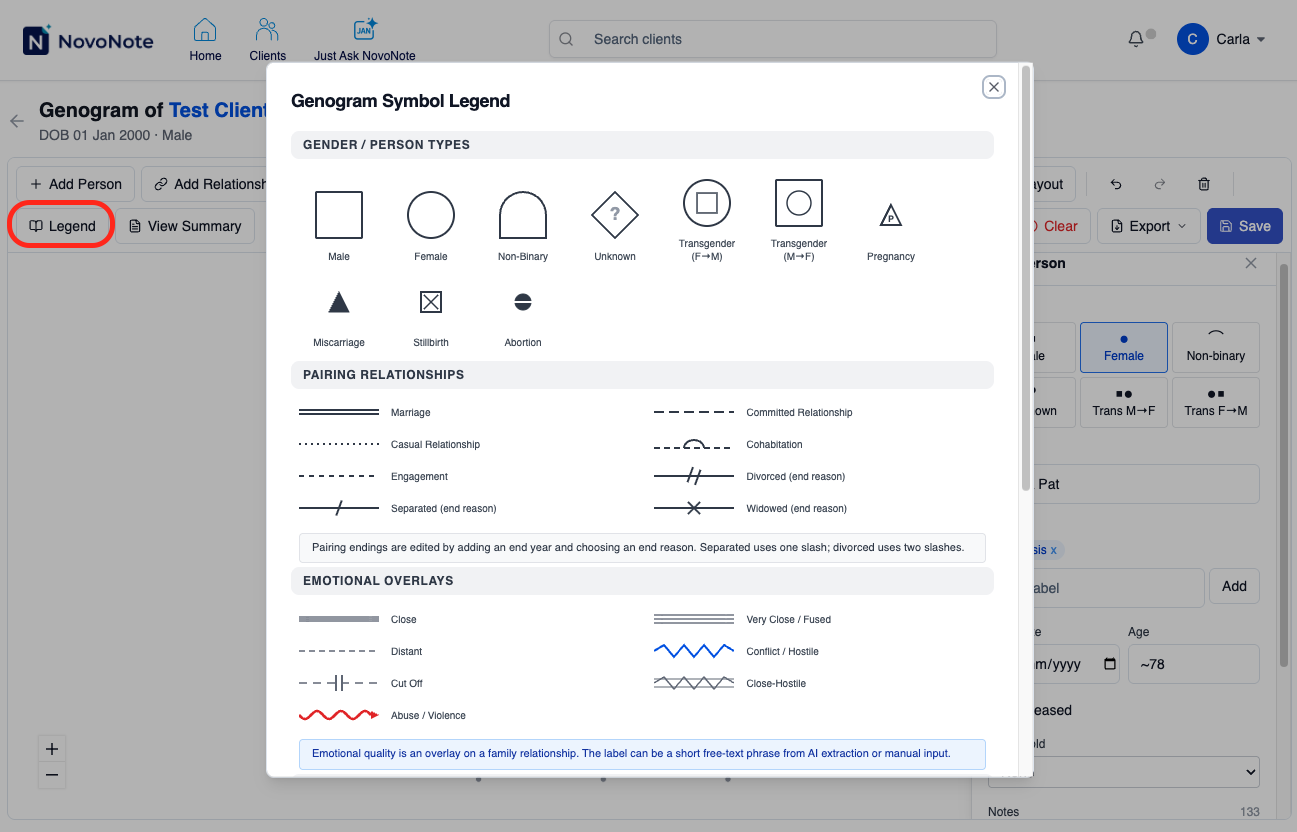
- To better understand the symbols in the genogram, click on the "Legend" button in the top bar:
4. Save or export the genogram
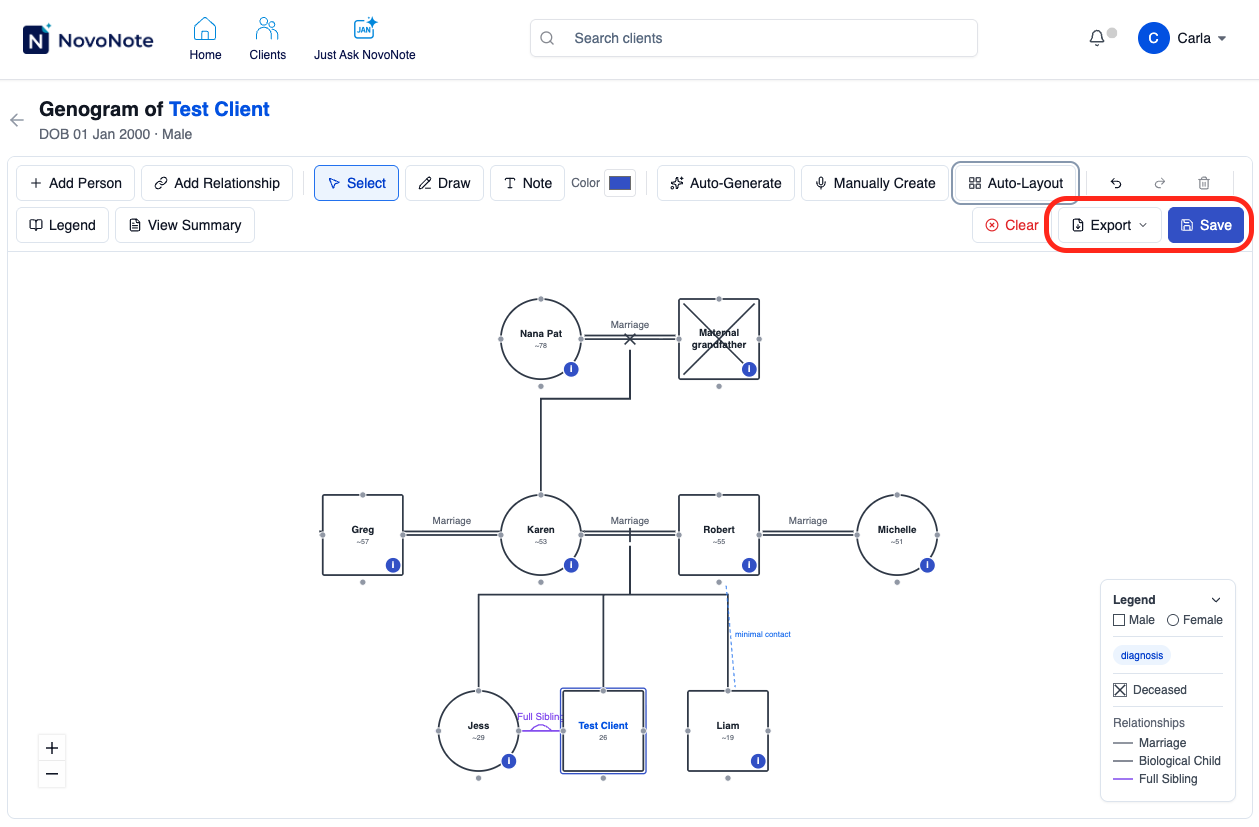
- Once happy, clicking the "Save" button will ensure this diagram remains attached to the client record. You can revisit it anytime by again clicking on the "Genogram" button from the client record.
- The "Export" button allows you to download the genogram as a PDF file or PNG image.
5. Editing and updating a genogram:
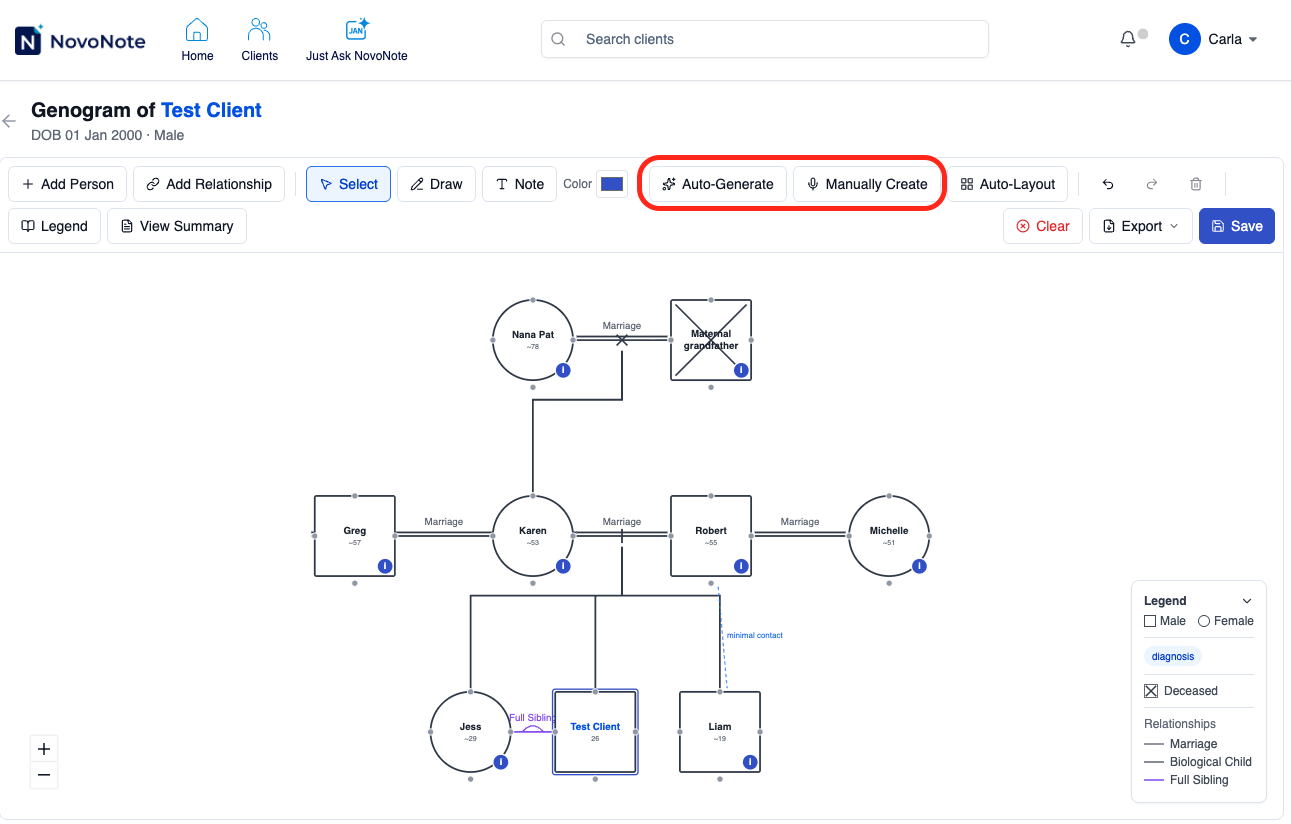
- When relationships change, or further information is shared in later sessions, you can update the genogram any time by clicking "Auto-generate" button. Using this, you can choose to either "Start from Scratch" with a new genogram, or retain your existing genogram but update it with "Add to Existing".
- Additionally, you can manually edit the genogram anytime. Note: Instead of editing by hand, you can use the "Manually Create" button to describe or dictate information for NovoNote to add for you.
Frequently asked questions
What data does NovoNote use to create a genogram?
NovoNote uses information available within the client record, including previous notes and transcripts, to identify relevant people, relationships, households, and family patterns.
For best results, transcripts are often more useful than notes because they usually contain richer, more detailed, and less filtered information about family members and relationship dynamics.
If NovoNote gets the genogram wrong, can I edit it?
Yes. NovoNote is designed to automatically extract likely family members and relationships, but clinicians should always review the generated genogram for accuracy.
Before generating the genogram, you can review the extracted people and deselect any that are incorrect. After the genogram is created, you can manually edit individuals, relationships, annotations, labels, and other details. You can also view source transcript excerpts to help verify where NovoNote identified particular information.
As with any clinical documentation tool, the clinician remains responsible for checking that the genogram is accurate and clinically appropriate.
Can I include non-family members in the genogram?
Yes. By default, NovoNote focuses on family members and people who appear to be part of the client’s household or close relationship system. However, you can manually add non-family members where clinically relevant.
For example, you may wish to include carers, foster parents, guardians, significant others, close supports, or other people who play an important role in the client’s life.
Can I export the genogram?
Yes. The Export button allows you to download the genogram as a PDF file or PNG image.
This can be useful when you want to include the genogram in a report, attach it to a clinical note, discuss it in supervision, or share it as part of clinical documentation where appropriate.
Can I update a genogram after it has been created?
Yes. Genograms can be edited and updated over time as new information emerges.
You can manually edit the genogram at any point, or use the Auto-generate option to update it from more recent notes and transcripts. When using Auto-generate, you can either start again with a new genogram or add newly identified information to the existing one.
Can I manually create a genogram without using transcripts or notes?
Yes. You can use the Manually Create option to describe or dictate family and relationship information for NovoNote to add to the genogram.
This is useful when the relevant information is not yet captured in the client’s notes or transcripts, or when you want to quickly add information discussed outside a recorded session.
Is the genogram saved to the client’s record?
Yes. Once you click Save, the genogram is stored within the client’s record. You can return to it at any time by opening the client record and selecting the Genogram button.
Can I see where NovoNote found the information?
Yes. During the review step, you can select View source transcript excerpts to see the transcript evidence NovoNote used when identifying family members or relationships.
This helps clinicians verify the extracted information before generating or updating the genogram.
Was this article helpful?
That’s Great!
Thank you for your feedback
Sorry! We couldn't be helpful
Thank you for your feedback
Feedback sent
We appreciate your effort and will try to fix the article