A Practice Plan allows practices and organisations to manage multiple practitioners under a single account. This makes it easier to invite clinicians, assign subscription tiers, monitor usage, and manage access from one central account.
Practice managers can set up and manage their team from the User Management page.
Accessing the User Management page
- Log in to your NovoPsych account and open NovoNote.
- Click on the dropdown arrow next to your name on your topmost-left. From here, select "User Management"
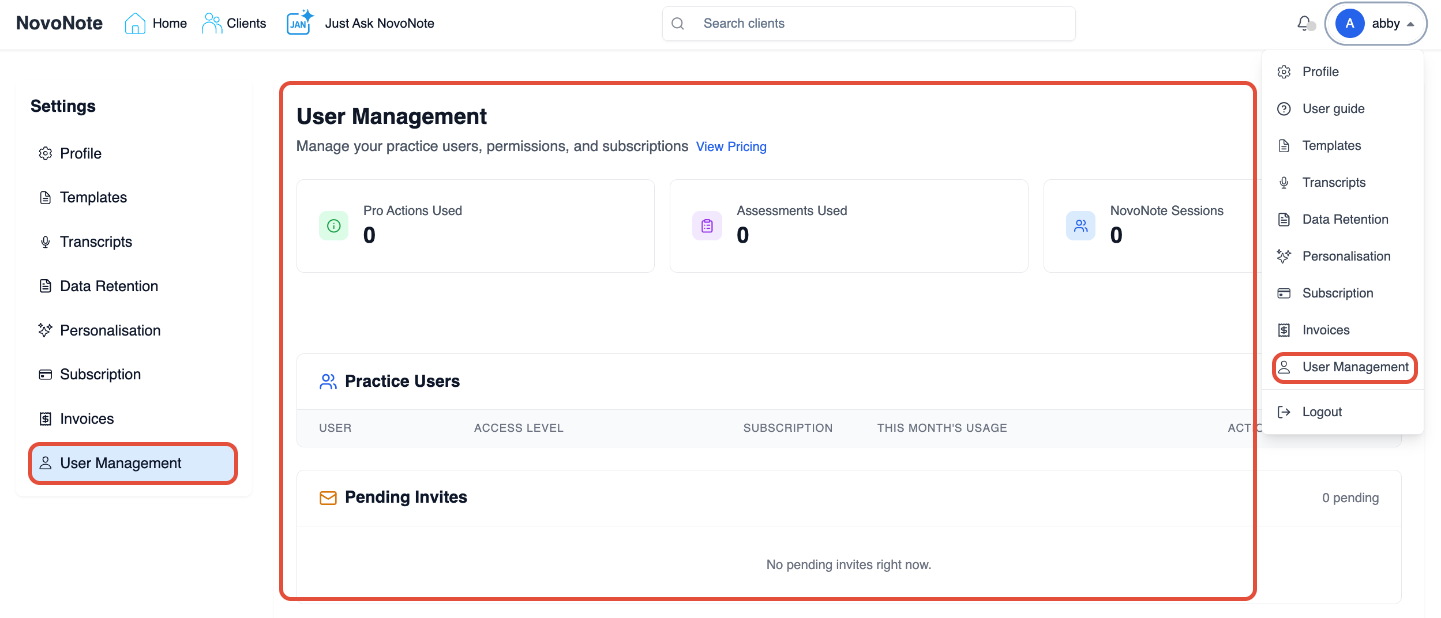
This will open the User Management dashboard, where you can:
- Set up a new practice plan by inviting new users
- Manage user roles/access and tiers
- Monitor platform usage (total Pro actions, including assessments and NovoNote sessions across all users and on the individual user level)
- View, resend or cancel pending invites sent to new users
Understanding the User Management Dashboard
The User Management page is where administrators manage users and monitor platform usage. It contains four main sections:
- Usage Summary
- Invite User
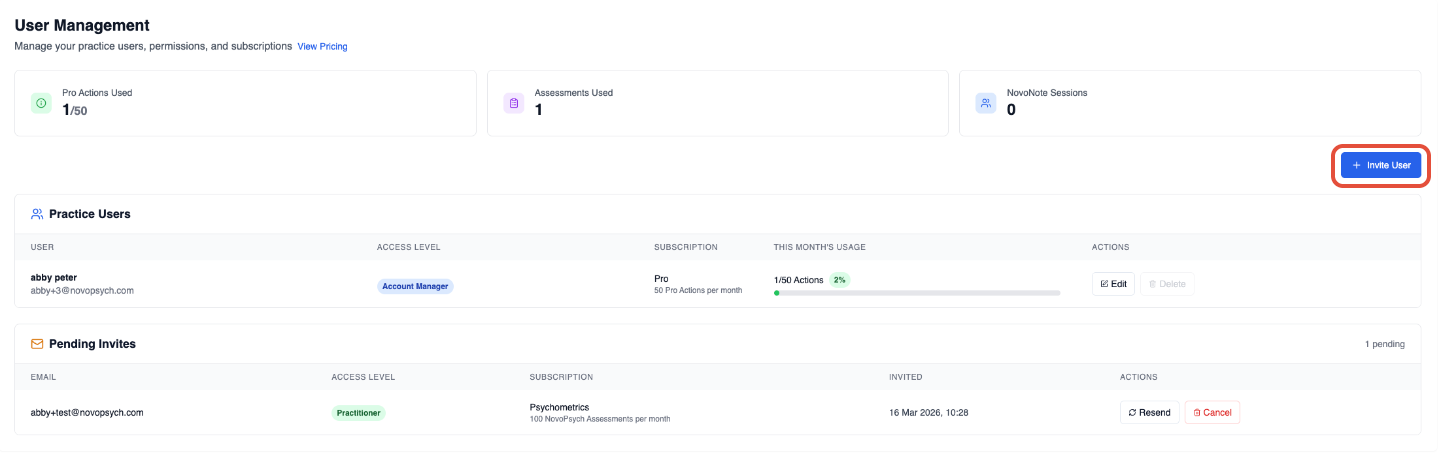
- Practice Users
- Pending Invites
1. Usage Summary
At the top of the page you will see a usage overview for the current calendar month. Pro Action allowances reset on the 1st of each calendar month, regardless of your billing or renewal date.
- Pro Actions Used: Displays the total number of Pro Actions used across your practice. This helps administrators track usage across all practitioners. Pro Actions include actions such as:
- Completing an assessment that was administered, emailed or scheduled. This includes any completed assessment generated through a link.
- Generating a note or document with AI; generating a genogram with AI.
- Assessments Used: Displays the number of psychometric assessments completed during the current calendar month. This allows practices to monitor how actively assessments are being used.
- NovoNote Sessions: Displays the number of NovoNote AI note-taking sessions recorded within the practice. This helps practices understand how frequently AI documentation tools are being used.
2. Invite user section
To set up a new Practice, you would need to invite users to be linked to your central account:
- Click Invite User in the top right corner
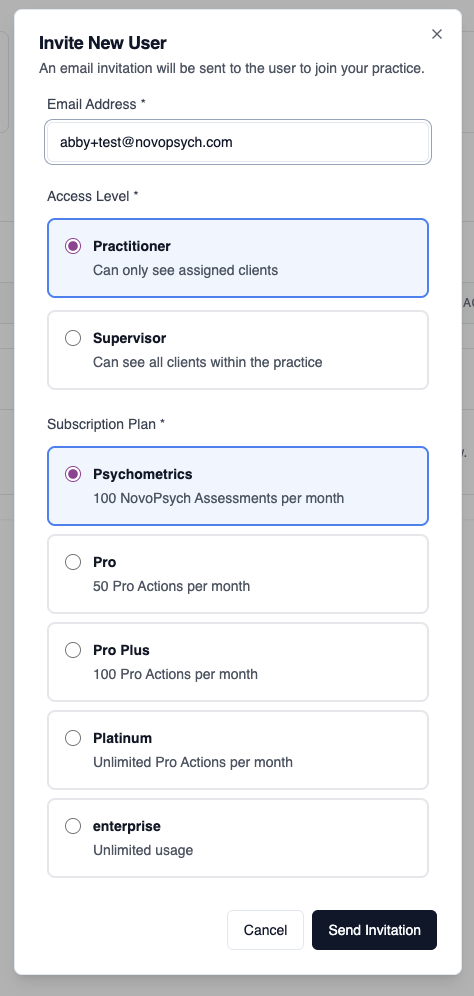
- Enter the practitioner’s email address
- Assign the appropriate access level and tier
- Click Send invitation
The practitioner will receive an email invitation to join the practice. Once accepted, they will appear in the Practice Users table below.
Note:
- A minimum of two users is required to set up a practice plan and the Account Manager/central account is required to be on a paid subscription.
- Users can be on different tiers (they do not need to be on the same tier)
- For access to Insights, all users must be set up on Pro Plus or Platinum tiers. Kindly also reach out to our customer support (info@novopsych.com) to confirm this access.
- Before proceeding, check to see you have a valid payment method added on your account which would be subsequently charged once the new users accept the invitation. Also check to see if your plan billing frequency is set to your preferred cycle (monthly or annual).
- To make changes to your subscription or billing cycle, see here.
- To make changes to your payment method, see here.
- For bank transfers, kindly reach out to our support team (info@novopsych.com) before inviting users or following through the steps above. Bank transfers are available for annual subscriptions. Card payments or direct debit are available for both monthly & annual subscriptions.
3. Practice Users section
The Practice Users table lists all clinicians currently part of the practice (including any new users who accepted the invitation).
Each column provides important information about the user such as:
- The name and email address of the practitioner
- Access Level or user’s role within the practice
- Subscription or tier assigned to that practitioner
- This Month's Usage column showing the practitioner's usage for the current calendar month (resets on the 1st)
- The Actions column allows administrators to manage users. From here you will be able to:
- Edit user tiers
- Update access or role of the user
- Remove the user from the practice
4. Pending Invites
The Pending Invites section shows invitations that have been sent but not yet accepted. From this section you will be able to:
- View the invited email address
- Resend the invitation
- Cancel the invitation
Once the practitioner accepts the invite, they will automatically appear in the Practice Users list.

Best Practices for Practice Administrators
To keep your practice organised:
- Limit Account Manager access
Only assign this role to administrators responsible for billing and account configuration. - Assign appropriate subscription tiers
Choose plans based on each clinician’s expected platform usage. - Monitor usage regularly
Check the usage summary at the top of the dashboard and on the individual user level to ensure your team is operating within usage limits. - Review pending invitations
Ensure new clinicians accept their invitations so they can access the practice account.
Troubleshooting
The practitioner did not receive the invitation
It is recommended for the practitioner to check their spam or junk folder as it may be directed there. You can also resend the invitation from the Pending Invites section.
The invited user already has an account
They will simply be asked to join your practice (note that any previous historical data will be part of the practice data upon accepting the invite).
A practitioner left the practice
You can remove them from the Practice Users list. This will revoke their access and cancel their current subscription. Note that once removed, all data formerly on their account will be retained by the Account Manager/central account.
Need further support?
If you require assistance setting up your practice plan, please reach out to our support team at info@novopsych.com
Was this article helpful?
That’s Great!
Thank you for your feedback
Sorry! We couldn't be helpful
Thank you for your feedback
Feedback sent
We appreciate your effort and will try to fix the article